Start Here - First Time Setup
Last updated: September 12, 2025
Setup
After installing the Autonomy extension, follow these steps to set up Autonomy:
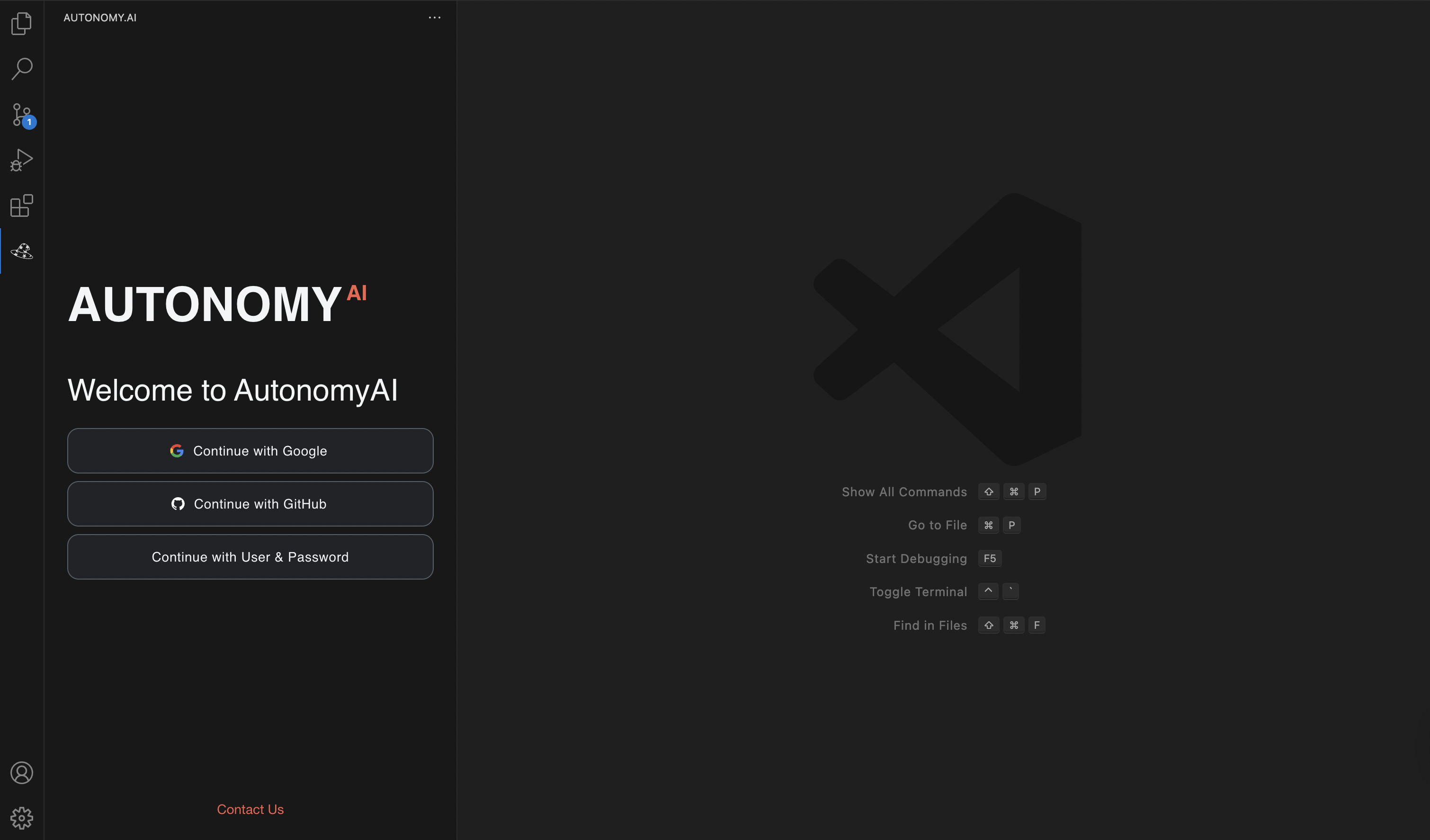
Click on the Autonomy logo in the sidebar to open the Autonomy panel.
Select which kind of SSO login you prefer, either connect to Google, GitHub, or choose an email and password (we recommend using a Google or GitHub account to sign in)
if you’d prefer to sign in with an email and password, find the temporary password sent to you by support@autonomyai.io
NOTE: Make sure that the email you sign in with is the same email you got the invitation sent to
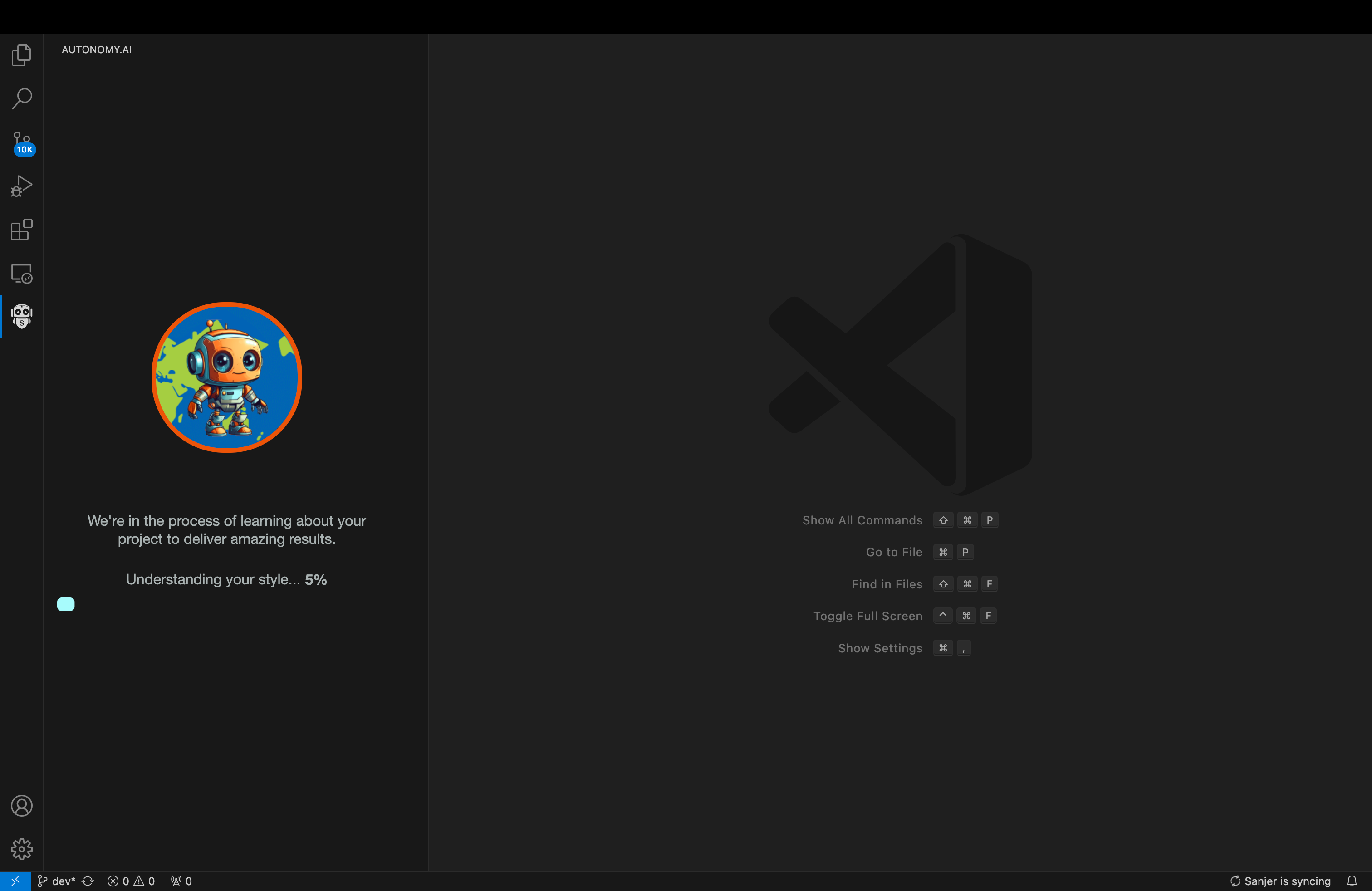
Fei Configuration Panel
NOTE: This step is optional. The configuration exists to allow you to customize the process and to improve the result
Click on the Fei Agent in the agent's carousel menu in the Autonomy panel.
Select Component folders for consideration
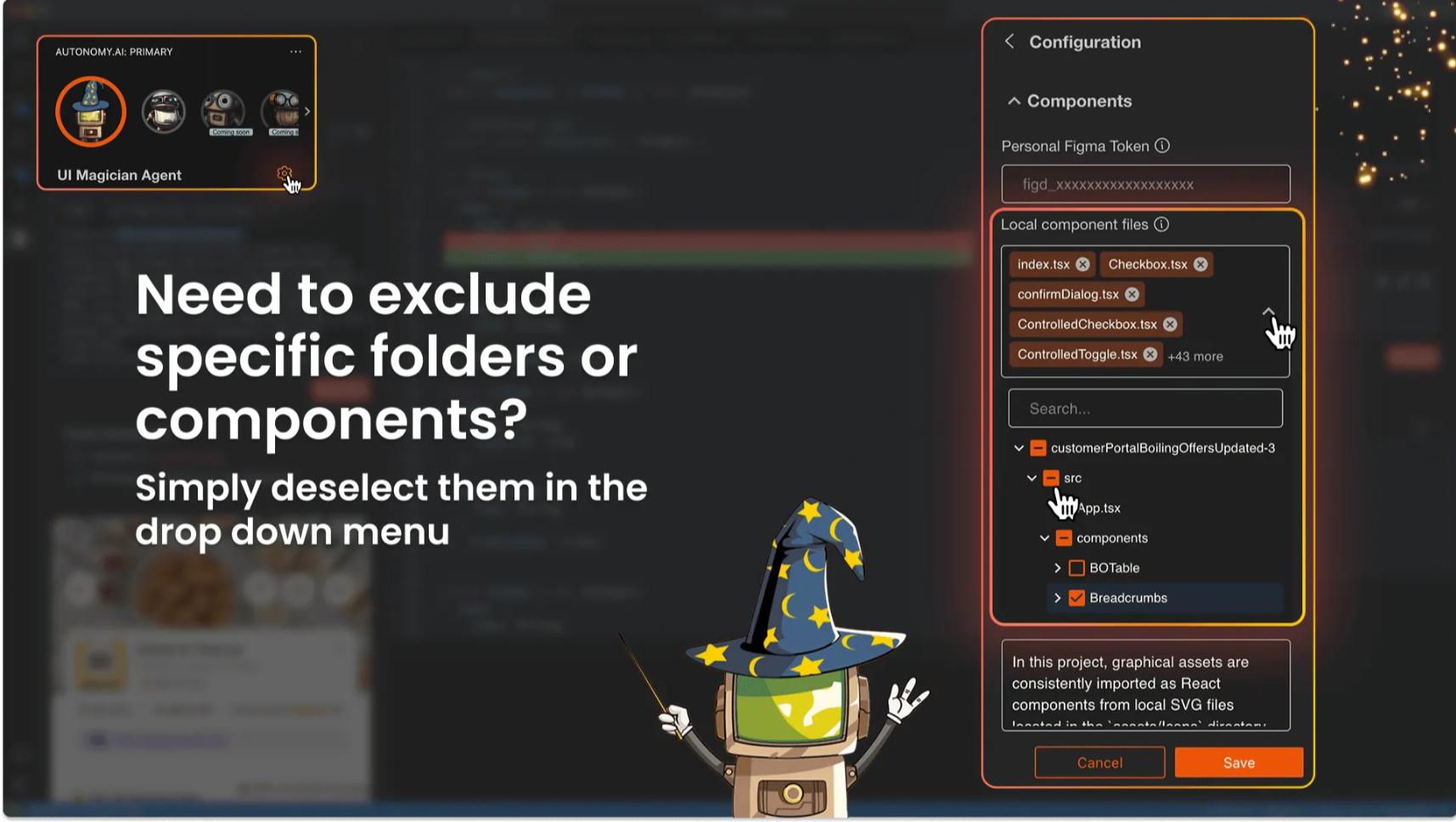
In the local component files, you can select the folders and files containing the components you’d like Fei to work with. You can change this between runs.
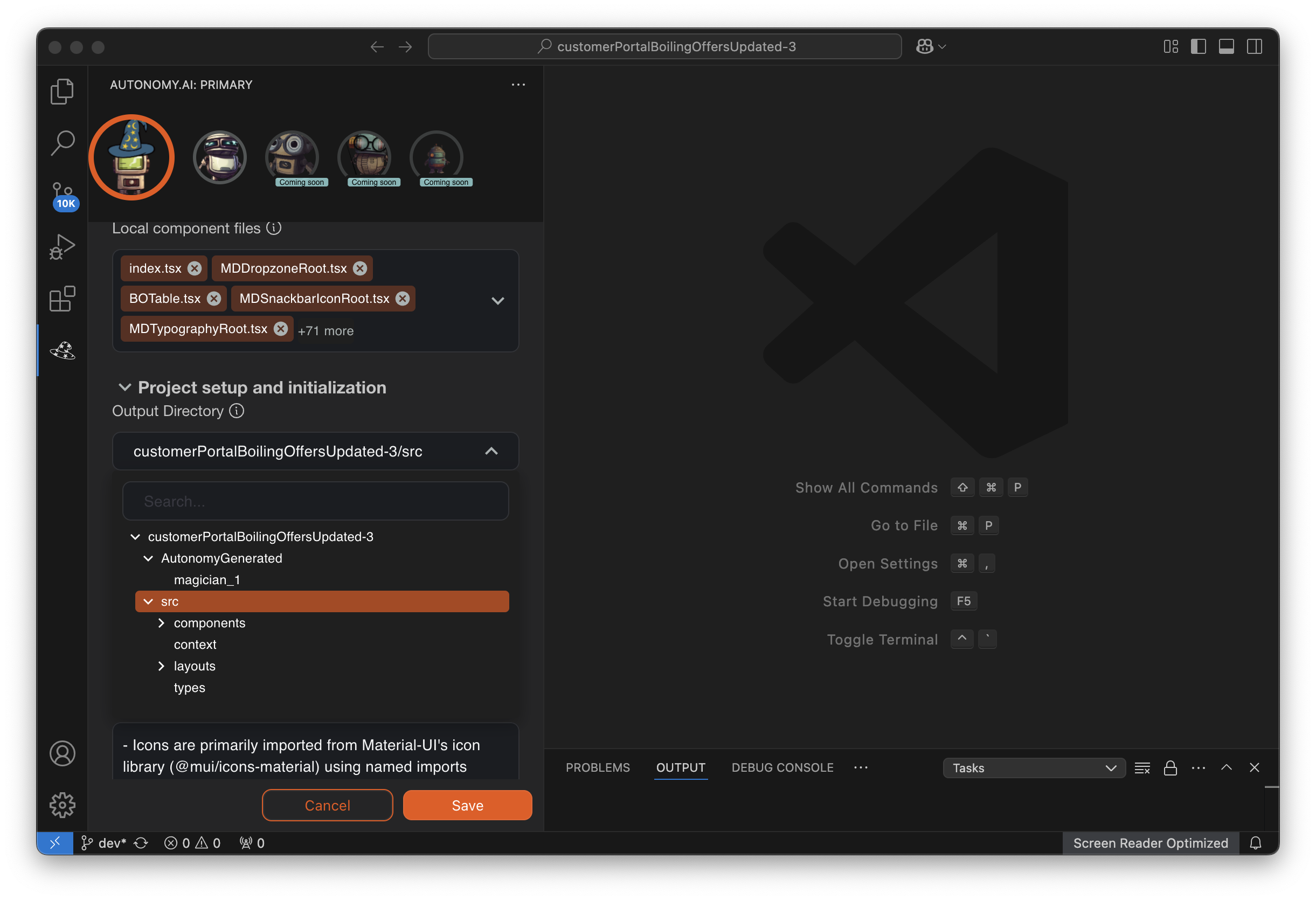
Output Directory (Optional)
You can specify an Output Directory, which is where Fei will place the new files it generates. It’s best to choose a directory that is already exposed to your local development server, so that the components can be rendered immediately without additional setup.
💡 Best Practice: Choose a directory where it can be rendered once the local server is running.
Change the style of code Fei creates!
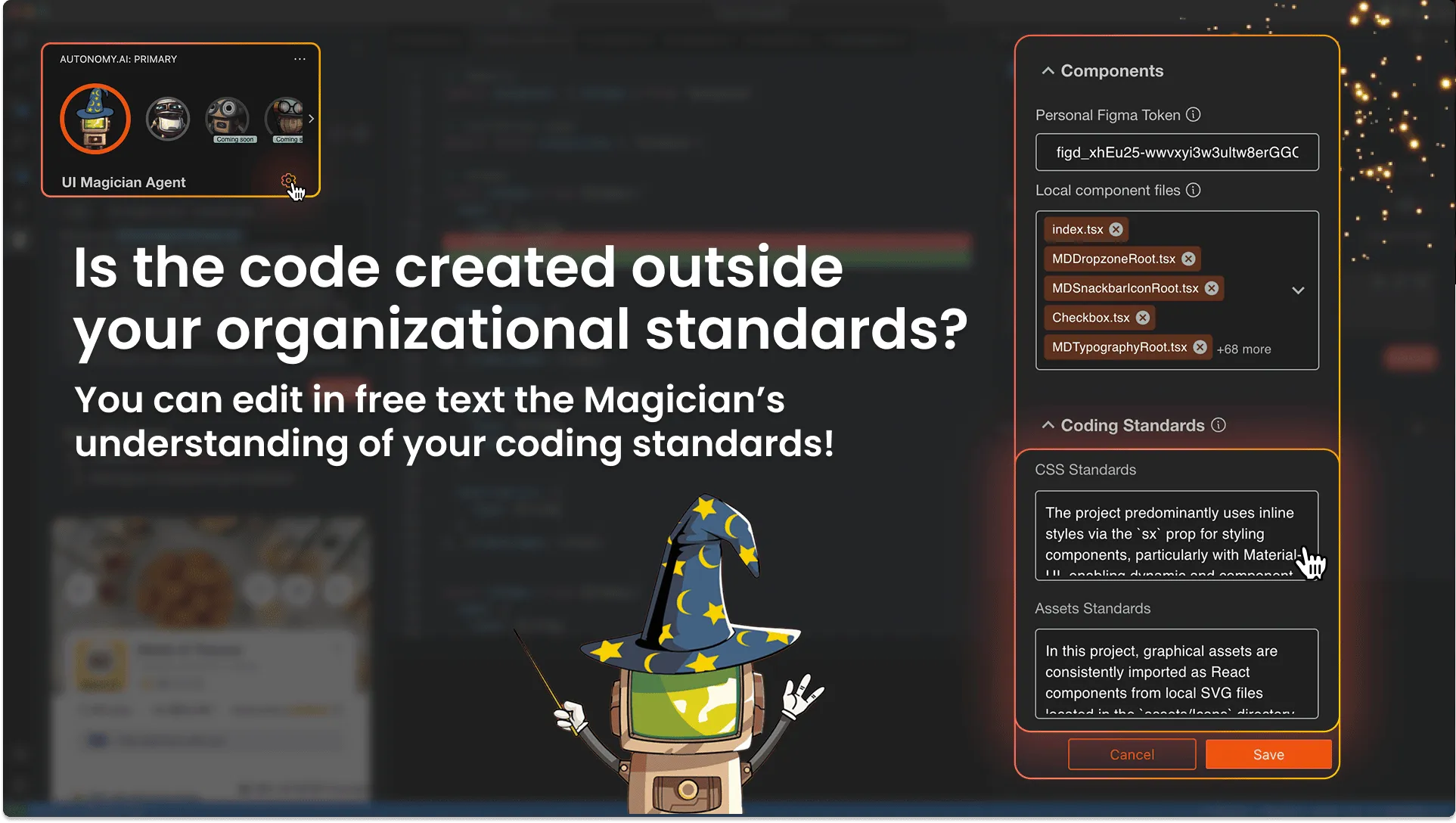
Fei automatically learns how the code is written in your codebase and matches it. If it learns practices you want to change (often due to looking at legacy code from previous standards), you can easily correct them by editing them in free text!
Connect to Figma:
Click the “Connect to Figma” button near the top of the Fei Agent window
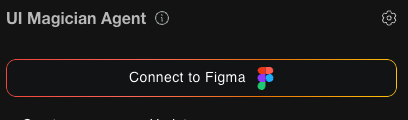
*Your IDE may open a security dialog window, click “Open” to proceed in your browser.
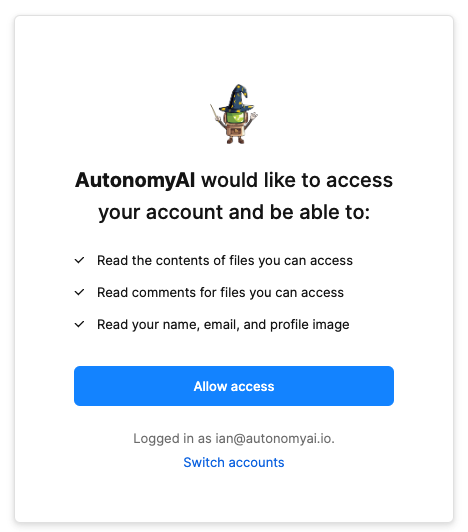
In your browser click “Allow access”
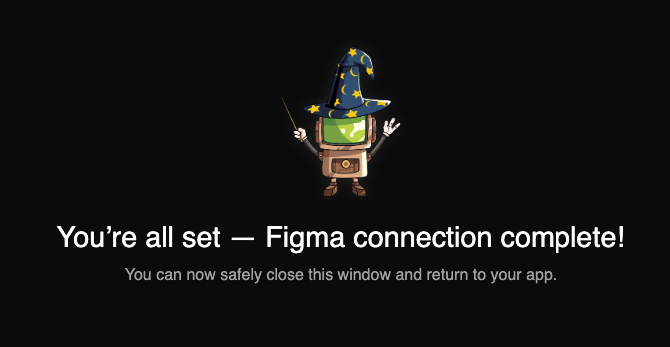
That’s it! You are all set with setting up Figma!
Connect to Jira
Click on the "Connect to Jira" button near the bottom of the use case tiles.
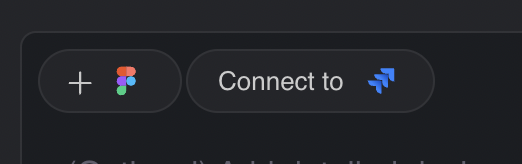
Or from within the configuration panel. Under "Connected Tools"
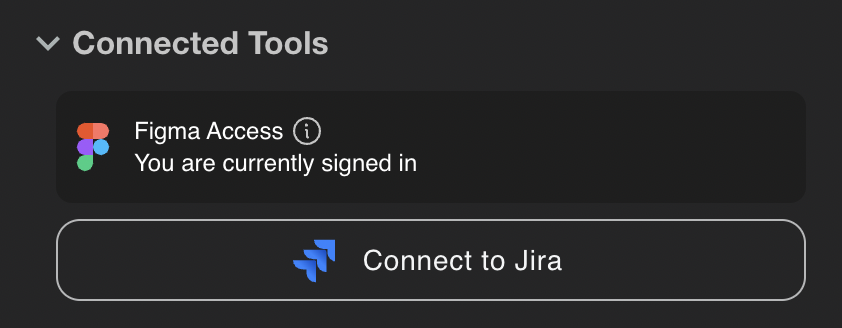
*Your IDE may open a security dialog window, click “Open” to proceed in your browser.
Authenticate via OAuth when prompted
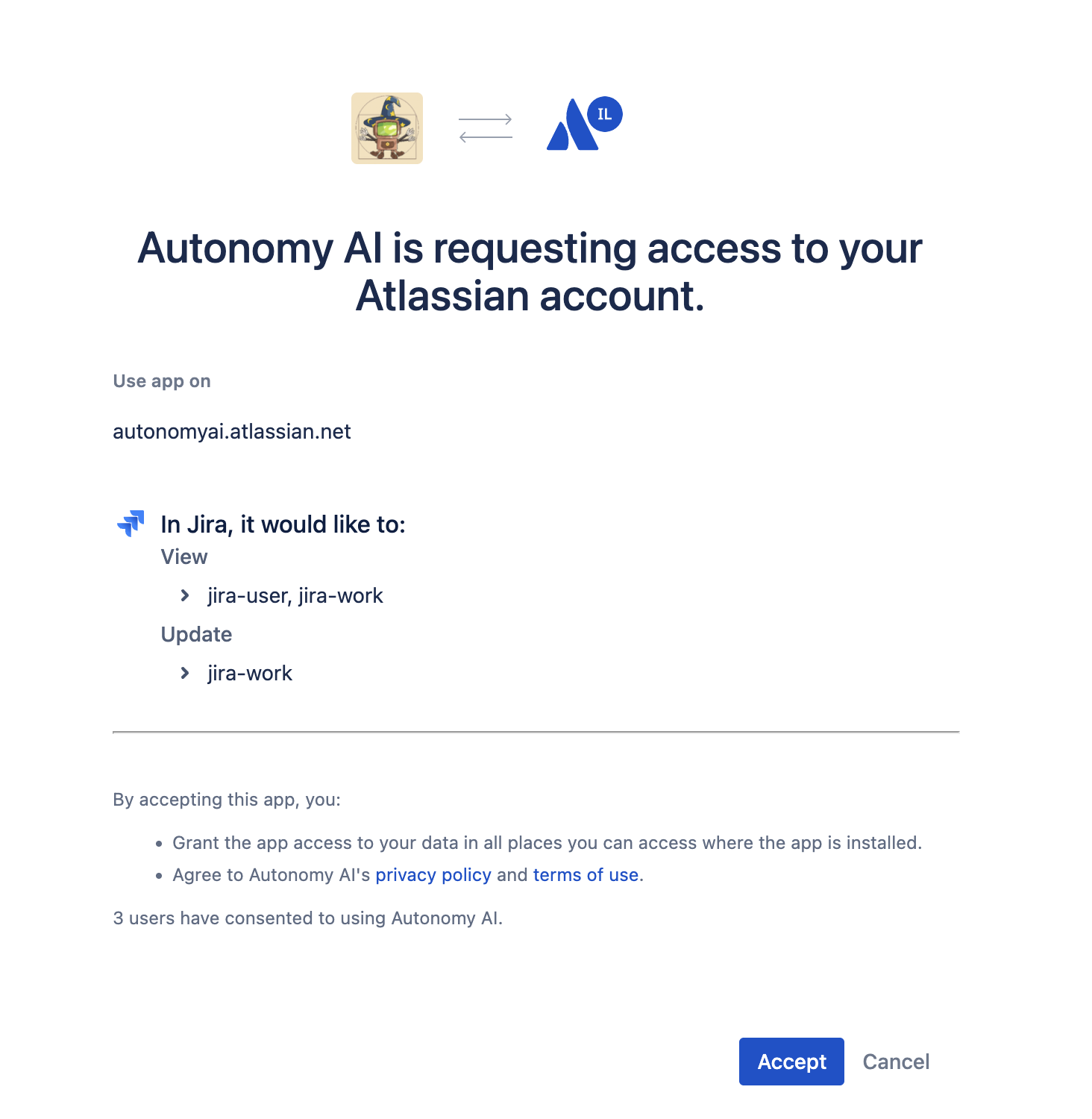
You’re now connected!
Now that you’re all set up, its time to choose the kind of use case you want to work on, look here for more info on each use case.
Connect to Linear
Click on the "Connect to Linear" button near the bottom of the use case tiles.
Or from within the configuration panel. Under "Connected Tools"
*Your IDE may open a security dialog window, click “Open” to proceed in your browser.
Authenticate via OAuth when prompted
You’re now connected!
Now that you’re all set up, its time to choose the kind of use case you want to work on, look here for more info on each use case.
*Your IDE may open a security dialog window, click “Open” to proceed in your browser.