Fei Studio Admin Guide
Last updated: February 5, 2026
Connecting GitHub & Preparing Your Projects
Welcome to Fei Studio - the place where Product, Design, and Engineering collaborate to evolve your product’s UI.
Right now, you can use Generating a New Task and Update Existing Screen inside Fei Studio to evolve your UI directly in the real product - from fine-tuning styling and redesigning layouts to creating entirely new components and functionality.
Fei Studio is the foundation for bringing all of Fei’s capabilities into the web app. Very soon, you’ll also be able to run additional flows here, including running App Review, Visual Vibe Coding (VVC), and more - all connected to the same projects, previews, and workflows.
All of these flows require one essential step: connecting your GitHub repos and initializing your projects. This setup is done once per Autonomy organization and enables Fei Studio for all users in the org.
This guide shows you how to set things up so Fei can understand your codebase, preview it, and safely make changes.
You can always come back later to fine-tune the settings.
🔐 Before You Begin
You need Admin permissions on GitHub to install the Fei Studio GitHub App.
If you do have GitHub Admin access → you can complete the setup yourself.
If you don’t → you can invite your VP R&D / Tech Lead, and they can complete it for your team. (See section 6)
This ensures Fei can work safely inside your repositories.
1. Connect GitHub to Fei Studio
When you log into Fei Studio for the first time, you’ll see a screen asking you to connect your code.
👉 To begin:
Click Connect to GitHub.
Fei opens the Integrations window.
Select Connect next to GitHub.
Fei now transfers you to GitHub to install the Fei Studio app.
2. Install the Fei Studio GitHub App
To let Fei work with your code, you’ll first install the Fei Studio GitHub App and choose which frontend repos it can access.
What you’re choosing:
👉 On GitHub:
Select the organization or account where your repos live.
Choose which repos Fei can access:
Pick the frontend repositories you want to preview and change using Fei Studio, OR
All repositories
You must choose at least one repo to get started, but you can always add or remove repos later.
Review permissions (read/write to code, commit statuses, PRs). These are needed so Fei can:
Clone your repo
Analyze your structure
Run previews
Apply changes
Open pull requests for you
Click Install to complete the installation.
When installation finishes, GitHub sends you back to Fei Studio.
3. Let Fei Sync Your Repositories
Back in Fei Studio, you’ll briefly see a syncing screen while GitHub confirms the installation.
Once ready, Fei displays a message like:
“GitHub app successfully installed! X Projects are connected.”
This means your integration is active.
4. Initializing Your Projects
Each connected GitHub repo becomes a project in Fei Studio.
When your GitHub integration is complete:
🔄 Automatic initialization
The first 10 projects start initializing automatically.
These will appear in your project list with an “Initializing” status.
✋ Manual initialization for additional projects
Any remaining projects will show Pending Initialization.
You can start them at any time:
Choose the project in the project list
Open Project Settings
Click Initialize Project
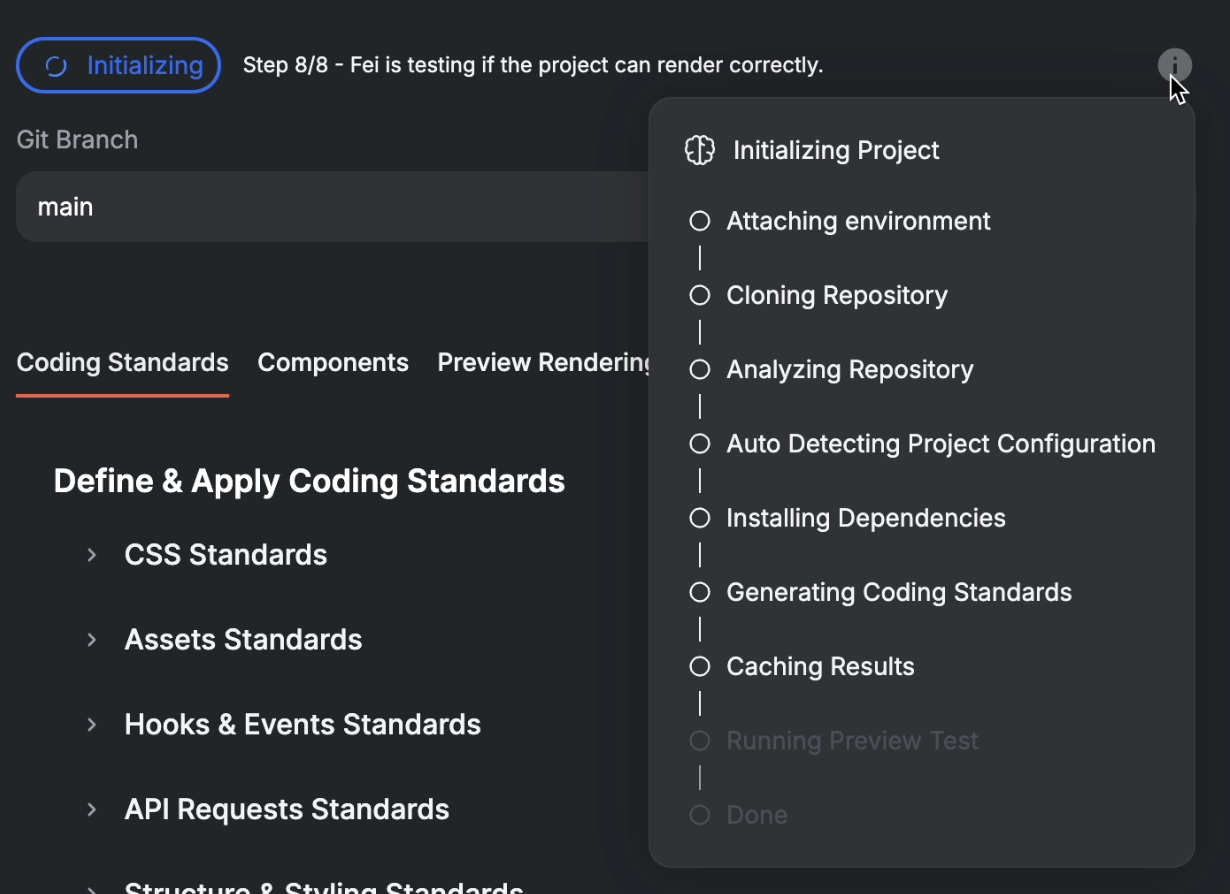
👀 Follow progress
Inside Project Settings, use the info (i) icon to see each step of the initialization:
⚠ Errors and fixes
If an error occurs, it will appear directly in the Project Settings card.
You’ll be able to fix the issue and restart initialization with one click.
If the error occurs during Preview Rendering, cgo to the Preview Rendering tab and follow the guidance in the Configure Preview Rendering section below.
After adjusting them, click Test Preview Rendering to validate the fix.
Can’t fix the error? Contact us
⏳ This process may take a while
You can use this time to invite your team and validate the coding standards (after the “Analyzing Repository” step is done, and continue about your day.
✅ Your Project Is Ready
When initialization completes, the project switches to a Ready state with a green “like”, and all the org’s active users will receive an email once the project is Ready
5. Configure Preview Rendering
Preview Rendering is what allows Fei Studio to safely run, preview, and validate UI changes inside your real codebase.
Fei sets this up automatically during project initialization, but depending on your project, some inputs or actions may be required from you.
💡 Not sure how to configure some of these settings?
Invite your R&D Lead to the organization as an Admin, so they can review the Preview Rendering setup and complete it correctly (See Section 7).
How Preview Rendering Is Structured
The Preview Rendering tab is organized into three guided flows:
Install - how the environment should be installed
Run - how to run the app
Validate - how you validate your repo
Each guide has a status indicator:
🟢 Green - everything is ready
🟡 Yellow - action required from you
🔴 Red - an error occurred
These three statuses roll up into the overall rendering status, shown at the top right of the tab.
Environment Variables & Secrets
Some projects require environment variables or secrets to render correctly.
Required values are clearly marked
Optional values can be added if relevant
If a guide needs a variable or secret, it will surface that requirement with a warning inside the guide
Making Changes and Testing
Any time you:
Update a guide step
Add or change environment variables or secrets
You’ll need to rerun Test Preview Rendering.
If errors occur, Fei will surface them directly so you can fix and retry.
Customizing for Your Project
As an R&D lead, you can also:
Add custom actions or steps to the guides
Adjust commands and validation logic to match your project’s setup
This ensures Preview Rendering reflects how your app actually runs in production.
6. Validate Coding Standards, Components and PR Template - For R&D Lead
As part of initialization, Fei automatically analyzes your codebase and detects:
Your coding standards, summarized into clear categories
The UI components Fei can safely use when generating and updating code
This section lets you review and fine-tune those, and also the PR Default Template, so everything Fei generates feels native to your codebase and workflow.
Coding Standards
As part of initialization, Fei automatically detects your project’s coding standards and summarizes them into helpful categories.
As an R&D leader, in the Coding Standards tab, you can review and refine these standards to ensure that all code generated by Fei - even when initiated by PMs or designers - follows your team’s conventions and best practices.
Updating these standards helps Fei write code that feels native to your project.
Components Validation
In the Components tab, you’ll see a tree of detected components across your project.
This list defines which components Fei is allowed to use when generating or modifying UI.
Review the detected components to make sure they’re correct
Uncheck any components you don’t want Fei to touch or reuse
Changes are saved per project (and per workspace in monorepos)
This step gives you precise control and ensures Fei builds only with the components you trust.
PR Template
Every Pull Request created from Fei Studio uses the PR Template defined here.
In this tab, you can:
Review and customize the default PR structure (title, summary, key changes, etc.)
Align the PR format with your team’s review standards
Edit the language and sections to match how your org likes to review code
The template includes a placeholder for a link back to the task in Fei Studio, so developers can easily open the live preview and see the changes in context.
You can insert this task link anywhere in the template by:
Selecting text
Clicking Add task link in the toolbar that appears above the text
This creates a tight feedback loop between Fei Studio and GitHub, making reviews faster and more visual.
7. Invite Teammates
Invite your GitHub Admin (if you’re not one)
If you don’t have permission to install the Fei Studio GitHub App, invite your GitHub Admin / Tech Lead / VP R&D.
They’ll complete the GitHub setup so Fei can initialize your projects.
Make sure they receive Admin permissions in Fei Studio.
Invite the rest of your team to vibe code your app
Designers
Product Managers
Frontend Engineers
Anyone who will request changes or help shape the frontend
Your broader team will be able to change UI, explore previews, and collaborate in Fei Studio once projects are ready.
🎉 Your Team Is Ready to Build With Fei
Now that everything’s ready, your Designers, Product Managers, and the rest of your team can start shaping the UI with Fei - exploring, tweaking, and vibe-coding your frontend together, and bringing ideas to life faster than ever.