How to: Start a Run with Fei
Last updated: September 12, 2025
Introduction
Autonomy is a comprehensive AI-driven development tool. It integrates directly into your IDE, using a large language model (LLM) alongside micro-agents to offer code analysis, improvement suggestions, and auto-refactoring. Emphasizing traceability, Autonomy encapsulates changes within git patches. Its unique strength lies in assimilating project context from supplementary documents like User Stories, Style Guides, and Software Design Documents. Autonomy serves three primary users: ongoing developers, newcomers to the code, and team leads overseeing project management.
Starting a Run with Fei
When you open Fei's panel, you’ll first encounter the “What do you want to work on?” section. Select the use case that best describes your task to ensure Fei provides a tailored workflow optimized for your goal.
Here’s how it works:
Open Fei's panel and find the section titled “What do you want to work on?”
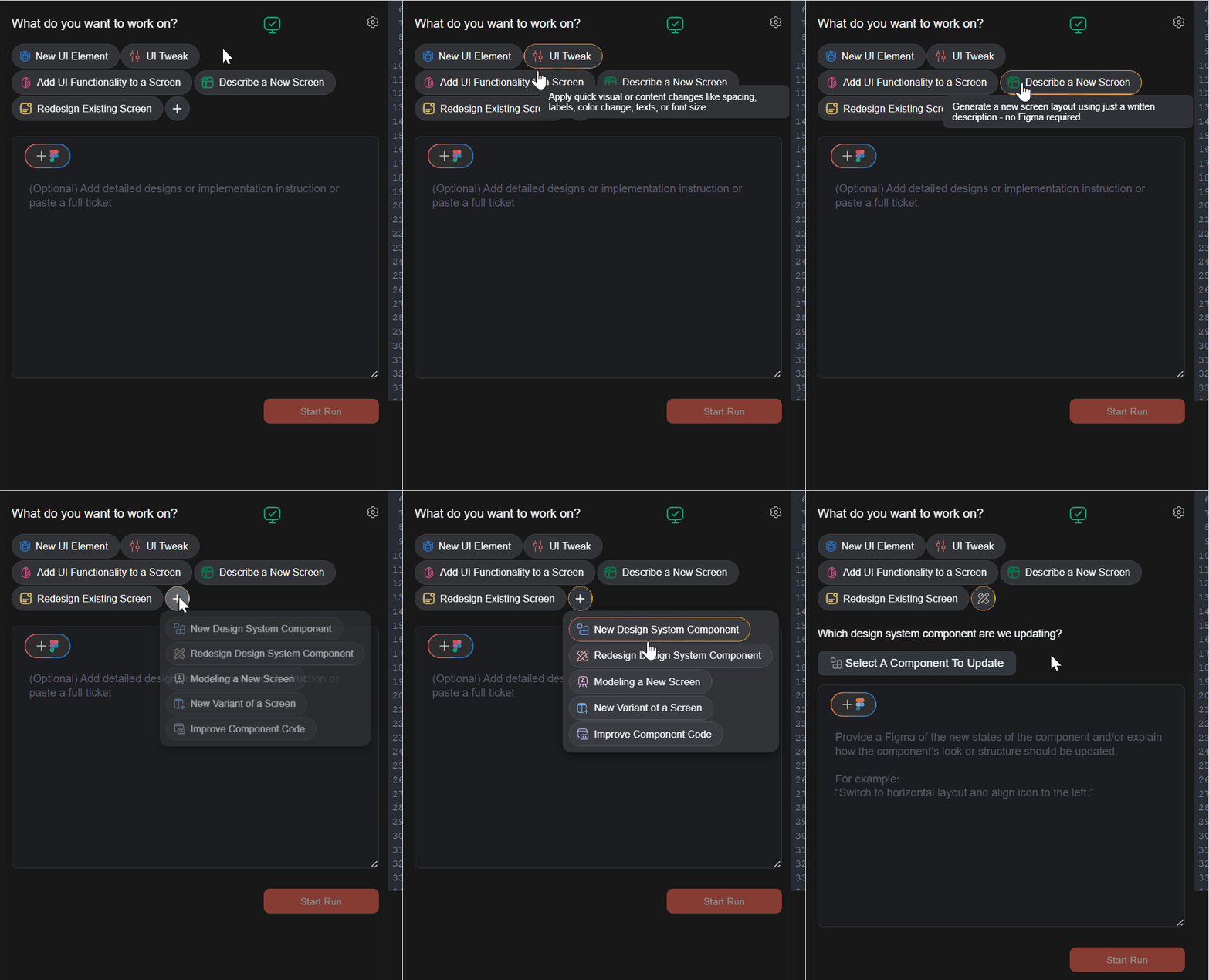
Choose the use case most relevant to your needs, such as:
New Design System Component
UI Tweak
Redesign Existing Screen
💡 Tip: Hover over each option to see additional details and guidance.
Provide your input using one or more of the following:
A Figma link
A detailed text description
A Jira ticket ID or URL
A Screenshot
Want more details on available use cases?
If you are working on an Existing component, you need to select the specific component to update
Find the Component You Want to Update
Use the Smart Search bar to find the component you want to modify.
You can search by:
Component name
File path
Or even just describe what the component does (e.g., “button that submits a form”). Autonomy will figure it out for you.
Describe the Change You Want to Make
You have two main ways to specify the update:
Option A: Use a Figma Link
Open your Figma project.
Right-click the specific frame or element.
Choose Copy as → Copy link to selection.
TIP: Selecting a specific sub-frame (vs. an entire screen) gives you better results and saves everyone time.
If you haven’t connected Figma yet, no worries—just click the Connect to Figma button in the panel and follow the prompts in your browser.
Option B: Just Describe It
You can also simply type what change you’d like to make in the provided textbox.
Or do both! The more context, the better Fei performs.
Generating Code from Figma designs, Text Descriptions
Upload Design
Make sure to select a use case you'd like to run
If you’re not yet connected to Figma, click the “Connect to Figma” button.
If you’ve already connected previously, you’re good to go—no need to reconnect.
Add your design input in the format that works best for you. You can use one of or a combination of the following:
Click the ➕ icon to add a Figma URL.
How to Copy Figma Link
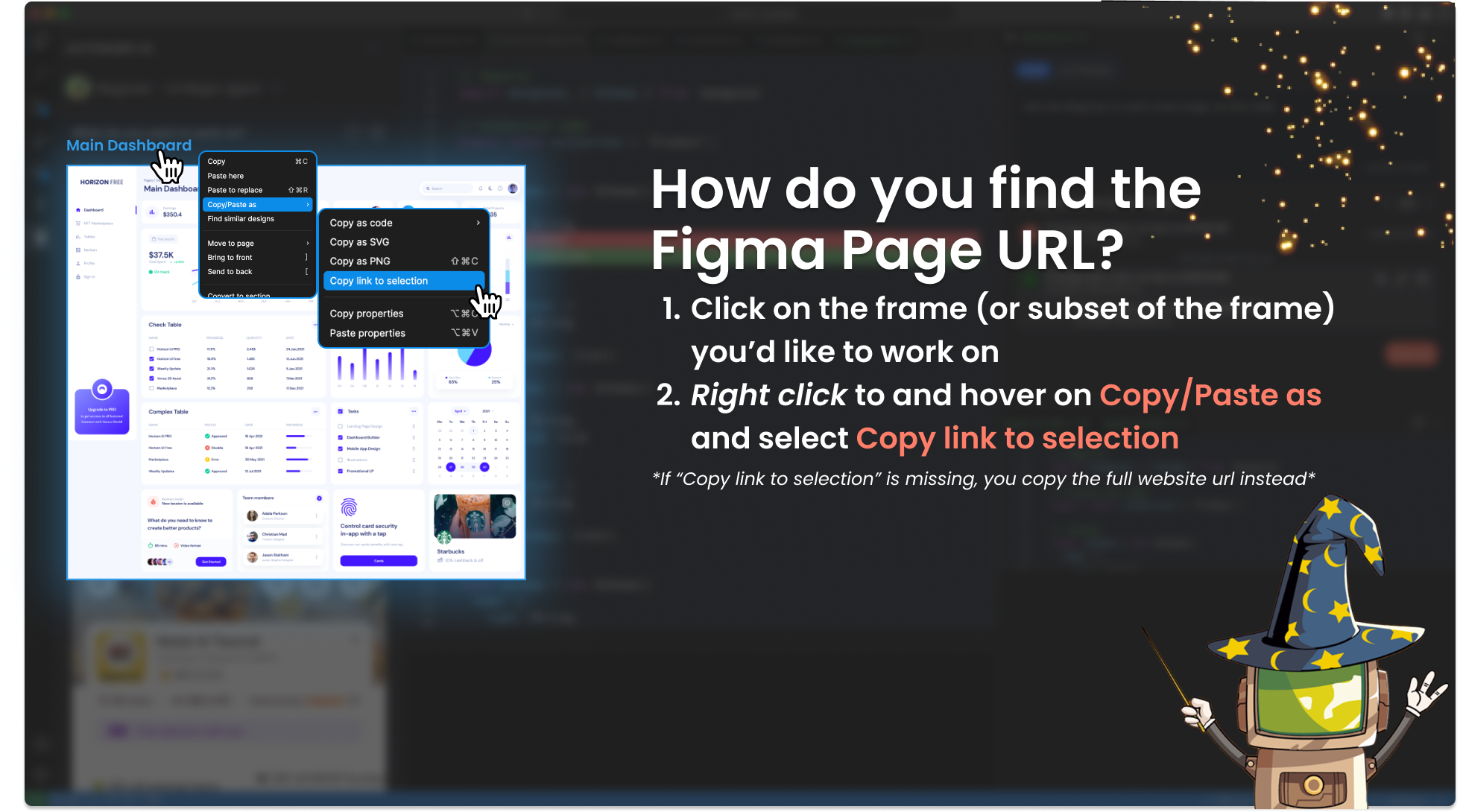
Open your Figma project.
Right-click on the page or the element you want to generate code for.
Choose Copy as and then Copy link to selection
copy and paste a product ticket
and/or add a detailed description
Click on the ”Start Run” button to load the design.
Once processing starts, the next step will appear in the right-hand panel.
If you used a Figma link, You’ll get a bounding box tool
Selecting Elements from a Figma URL
You can choose specific parts of the Figma screen to create, or select the entire design you uploaded.
Entire Design
1. Flip the toggle to Entire design and click Next
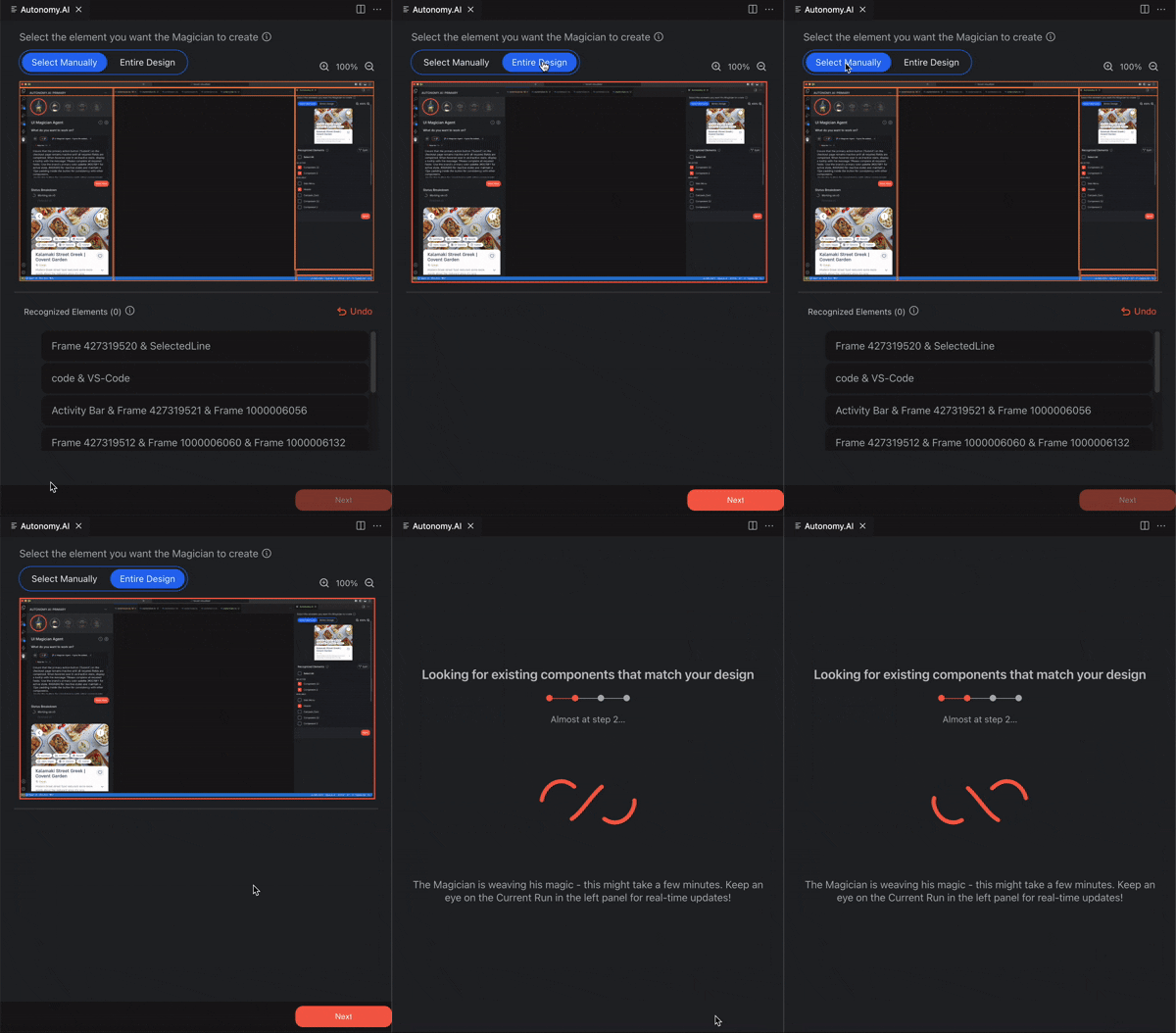
2. Select Manually
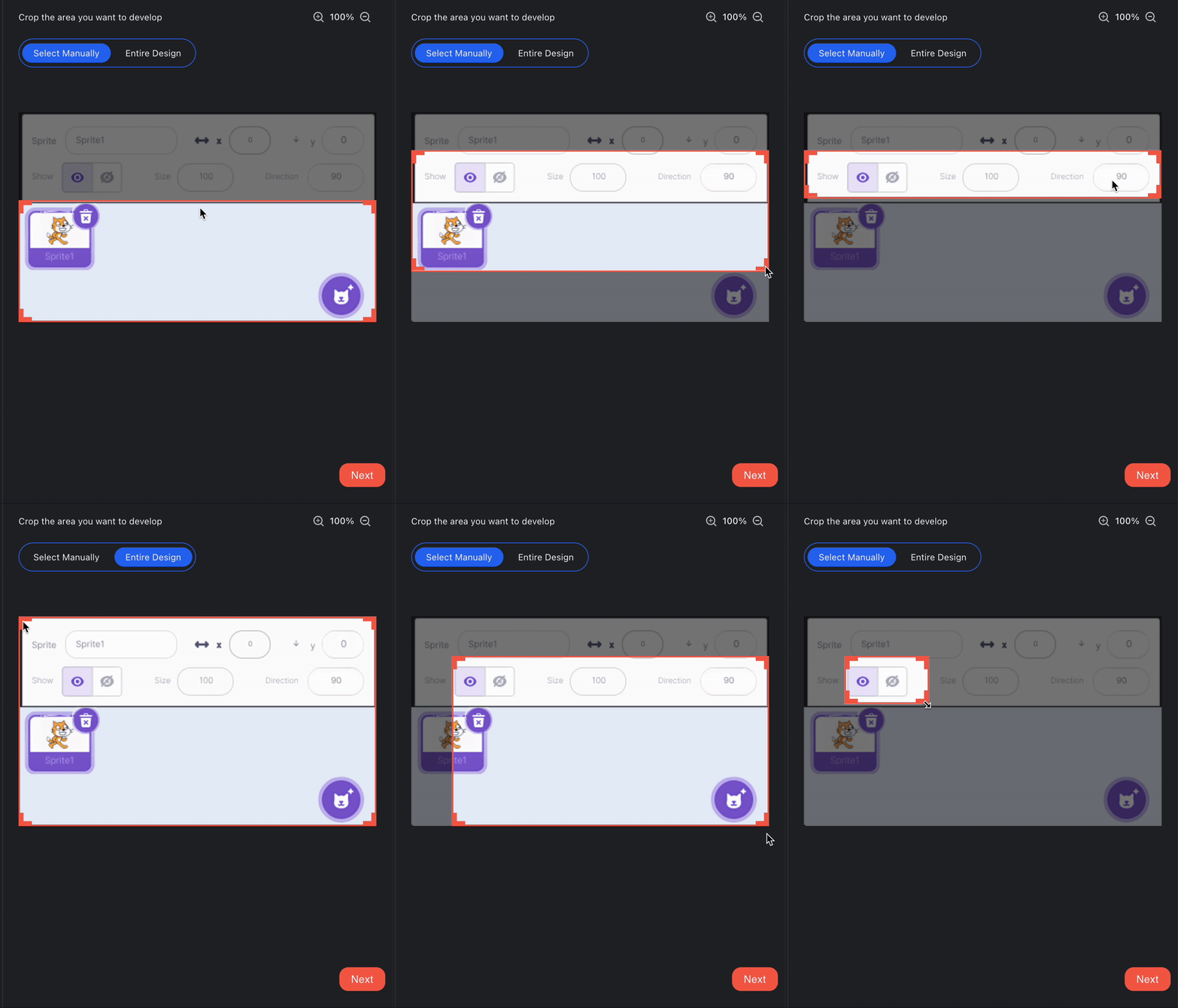
Crop a custom area — If you only want part of the Figma design, draw a box around the section you need. Fei will only use the cropped area for code generation.
a. Cropping makes it easier to work with messy files, multiple screens, or layouts with deep layer hierarchies — without splitting or manually grouping elements.
Generating Code from a Jira ticket
Make sure to select a use case you'd like to run
If you’re not yet connected to Jira, click the “Connect to Jira” button.
If you’ve already connected previously, you’re good to go—no need to reconnect.
Click the ➕ icon to add the Jira Ticket URL or type the ID.
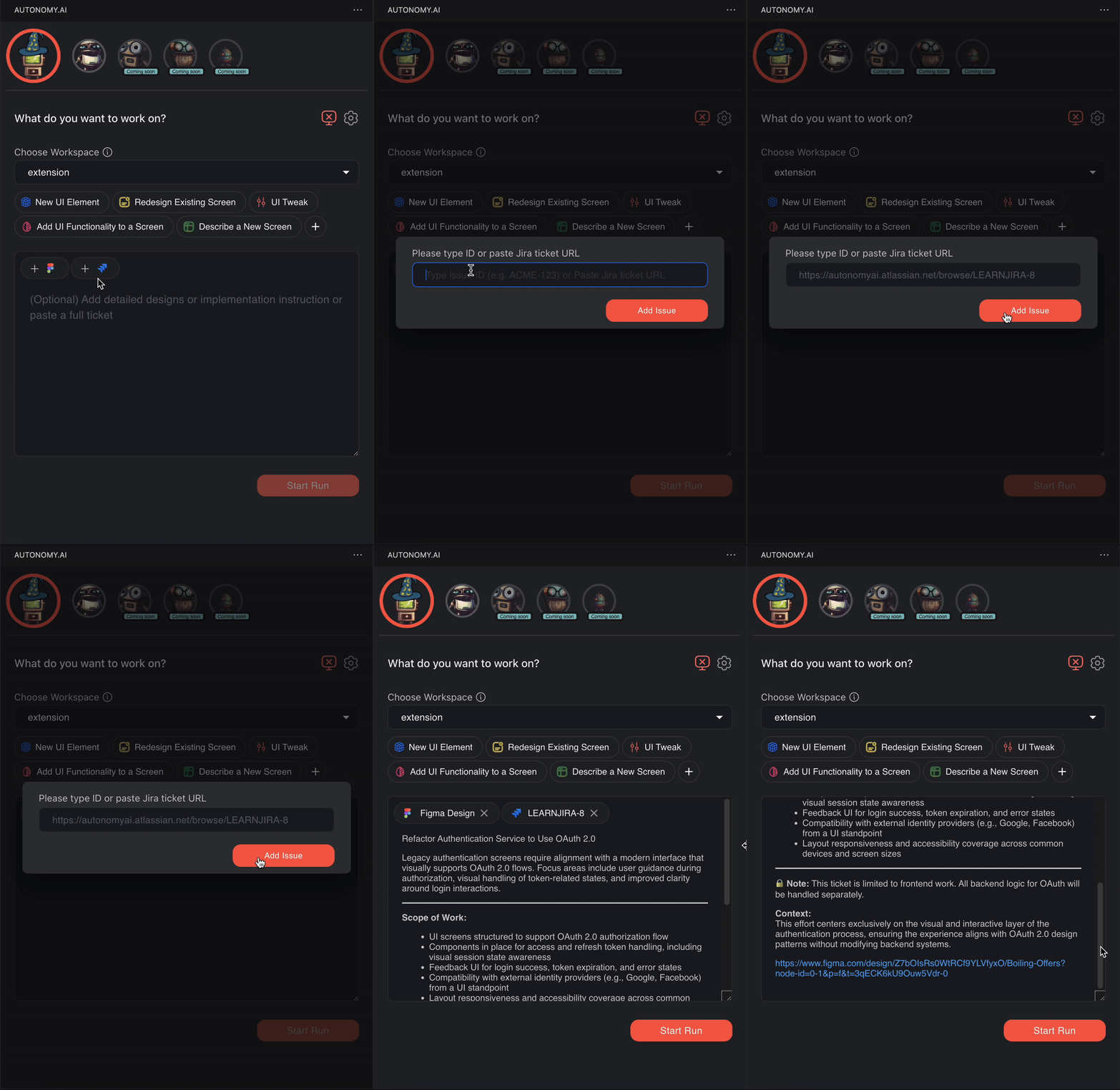
Click Add Issue
The issue description will be used as your design and implementation instructions
If a Figma frame link is mentioned in the issue, the first frame mentioned will be added automatically
Click Start Run
If you used a Figma link, you’ll get a bounding box tool
Selecting Elements from a Figma URL
You can choose specific parts of the Figma screen to create, or select the entire design you uploaded.
Entire Design
1. Flip the toggle to Entire design and click Next
2. Select Manually
Crop a custom area — If you only want part of the Figma design, draw a box around the section you need. Fei will only use the cropped area for code generation.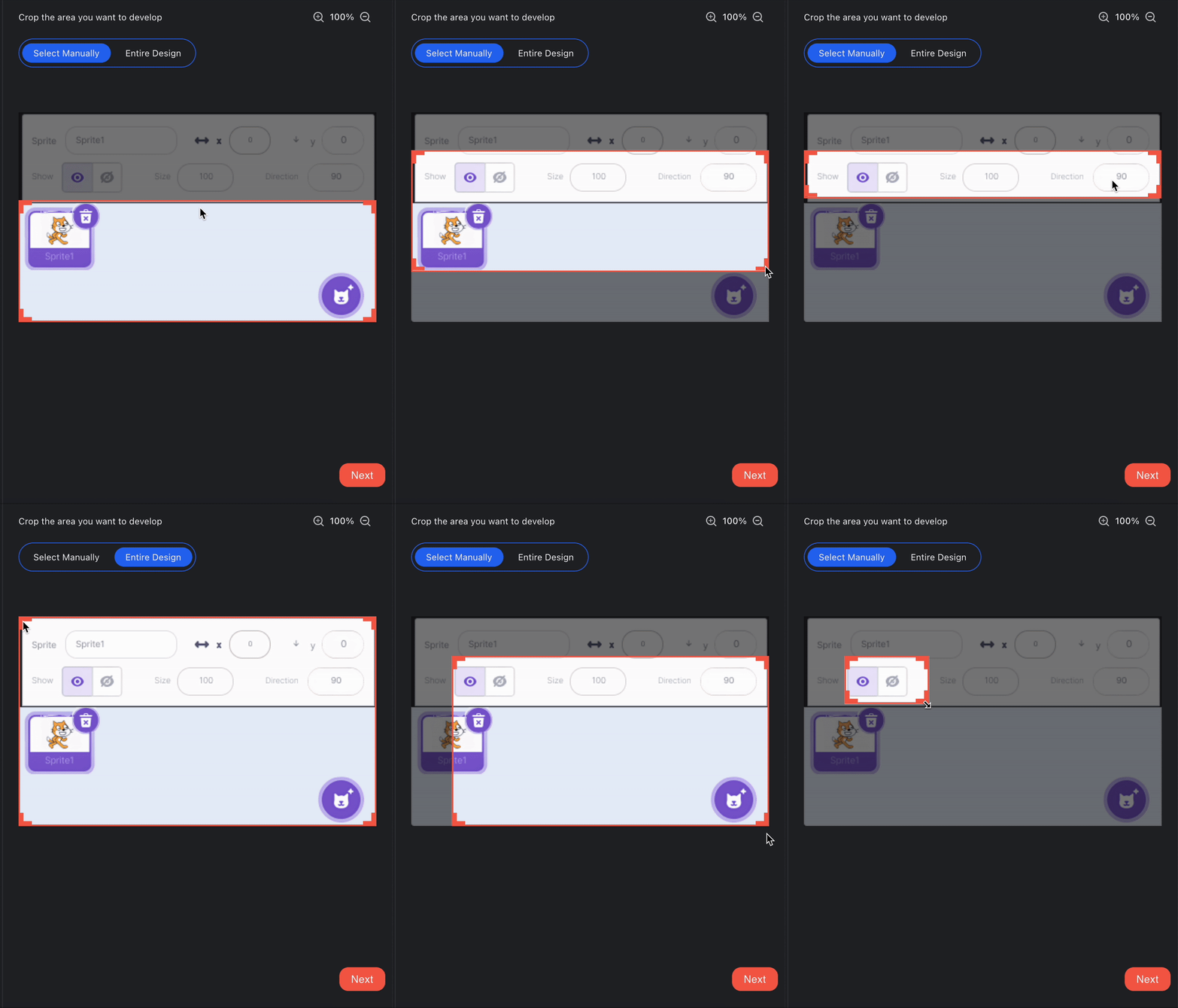
a. Cropping makes it easier to work with messy files, multiple screens, or layouts with deep layer hierarchies — without splitting or manually grouping elements.
Generating Code from an Uploaded Image or Screenshot
Click the ➕ icon and select “Upload Image” or paste an image directly into the panel.
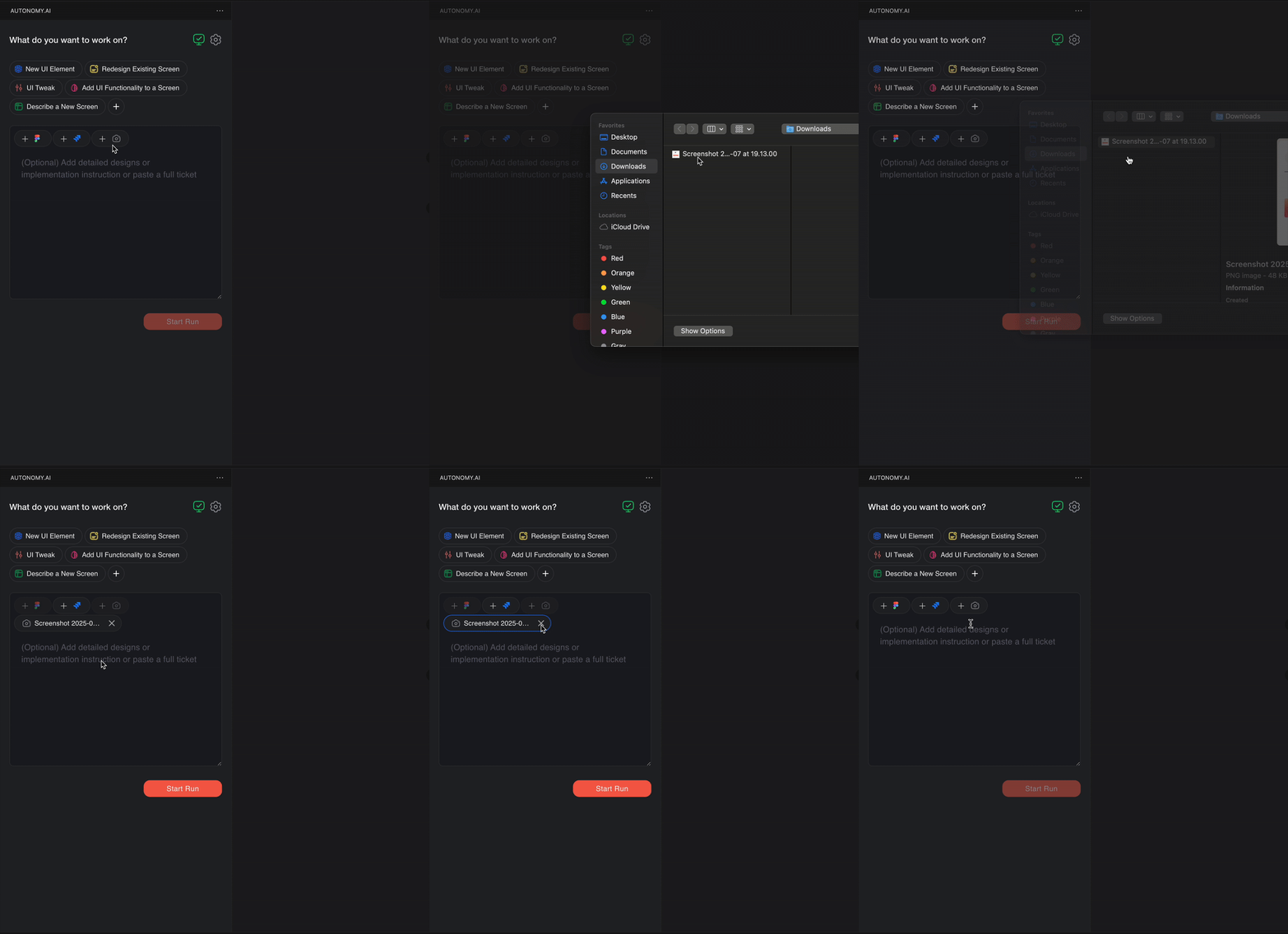
The uploaded image name will appear near the +
Select the use case you’d like to run.
Add any additional context in the description box (e.g., logic details, component names, related Jira ticket).
Click Start Run to generate code.
Generating Code from a Linear ticket
Make sure to select a use case you'd like to run
If you’re not yet connected to Linear, click the “Connect to Linear” button.
If you’ve already connected previously, you’re good to go—no need to reconnect.
Click the ➕ icon to add the Linear Ticket URL or type the ID.
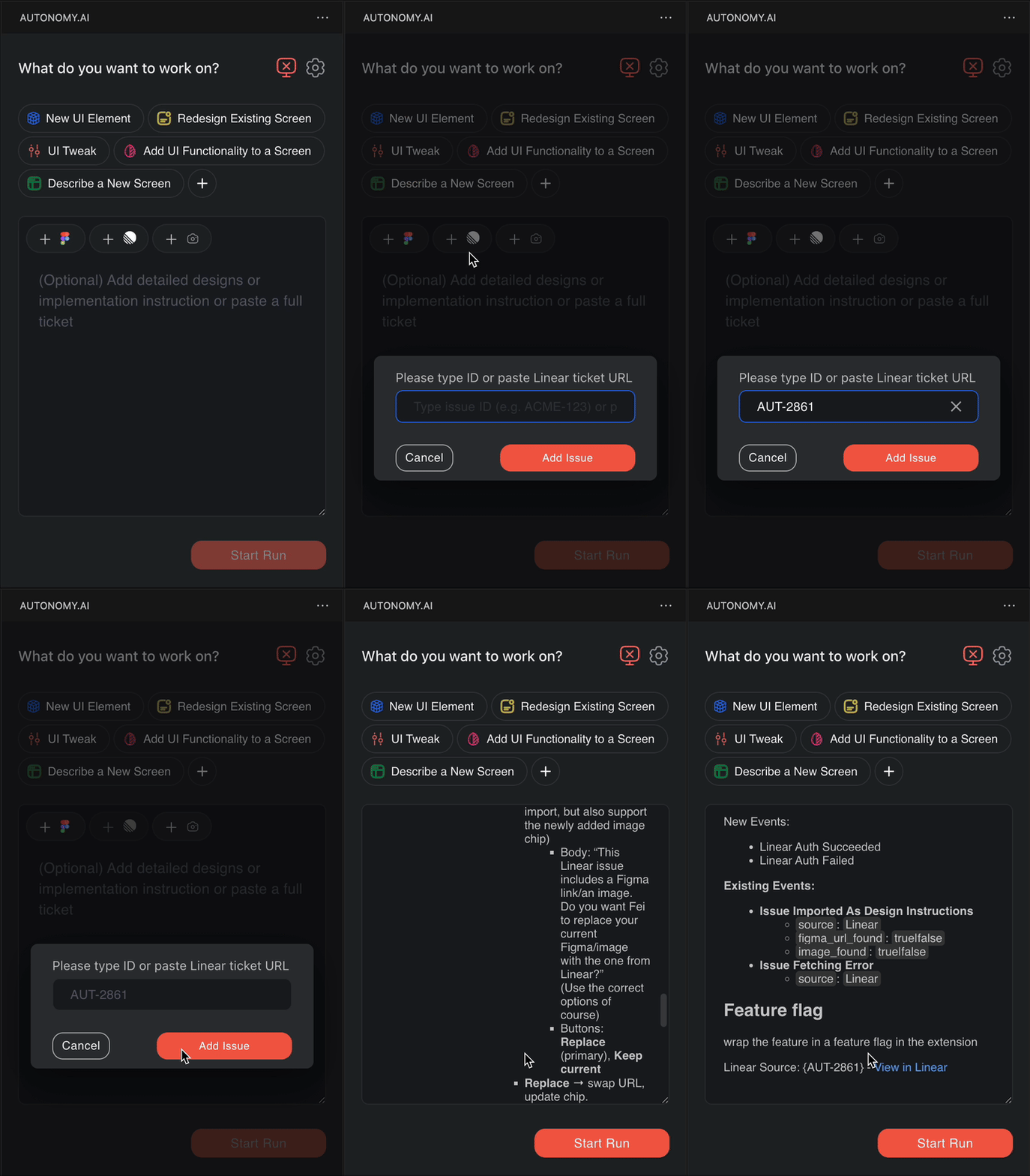
Click Add Issue
The issue description will be used as your design and implementation instructions
If a Figma frame link is mentioned in the issue, the first frame mentioned will be added automatically
Click Start Run
If you used a Figma link, you’ll get a bounding box tool
Selecting Elements from a Figma URL
You can choose specific parts of the Figma screen to create, or select the entire design you uploaded.
Entire Design
1. Flip the toggle to Entire design and click Next
2. Select Manually
Crop a custom area — If you only want part of the Figma design, draw a box around the section you need. Fei will only use the cropped area for code generation.
a. Cropping makes it easier to work with messy files, multiple screens, or layouts with deep layer hierarchies — without splitting or manually grouping elements.
If you’re creating a new component, you’ll be able to review the components that Fei will reuse for you.
Choosing the components for the implementation
When you're ready, choose the element you want and click Next.
Choose Components
Fei will suggest components as candidates to be used in the code generation.
You can choose which of the components to use.
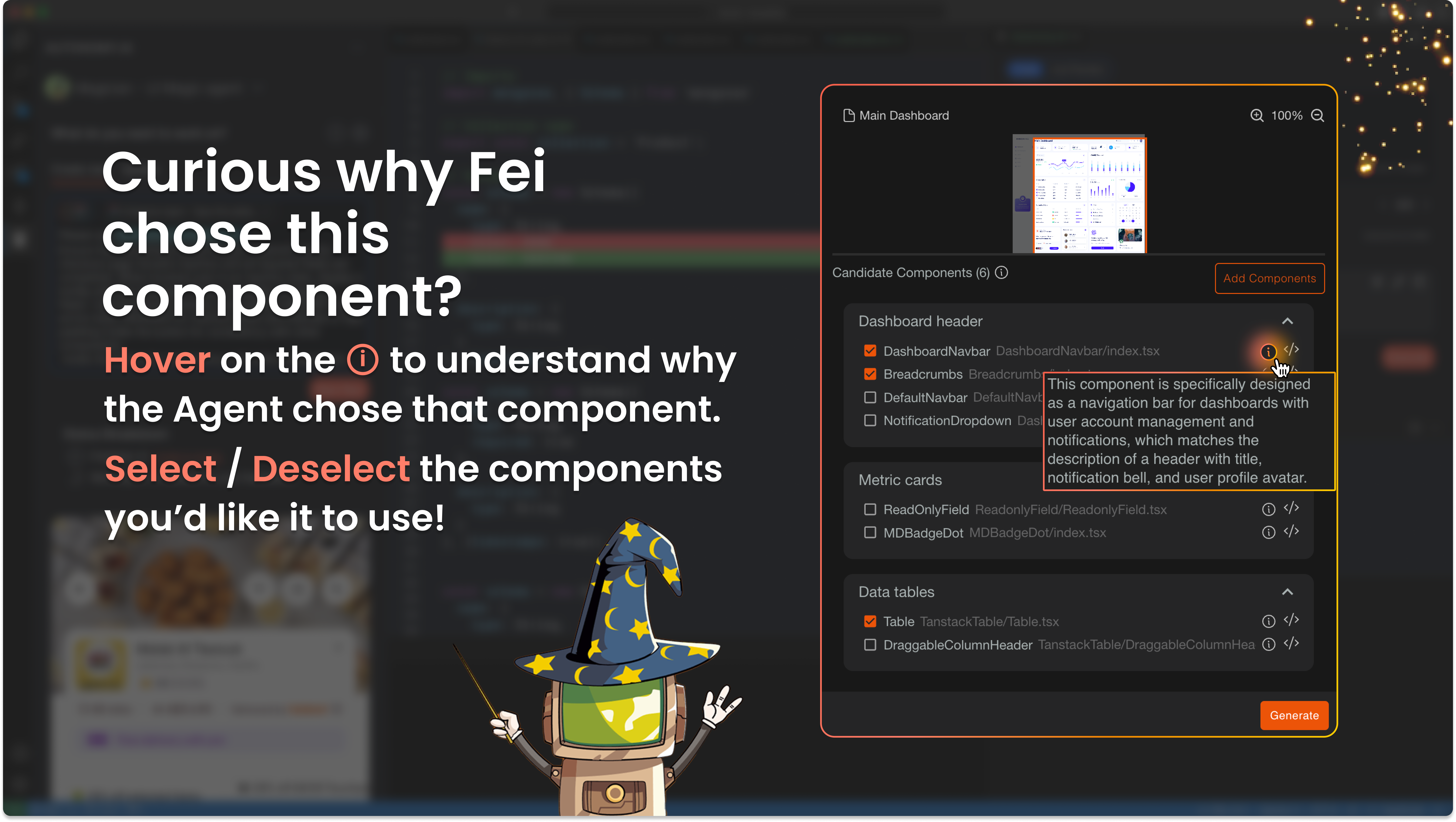
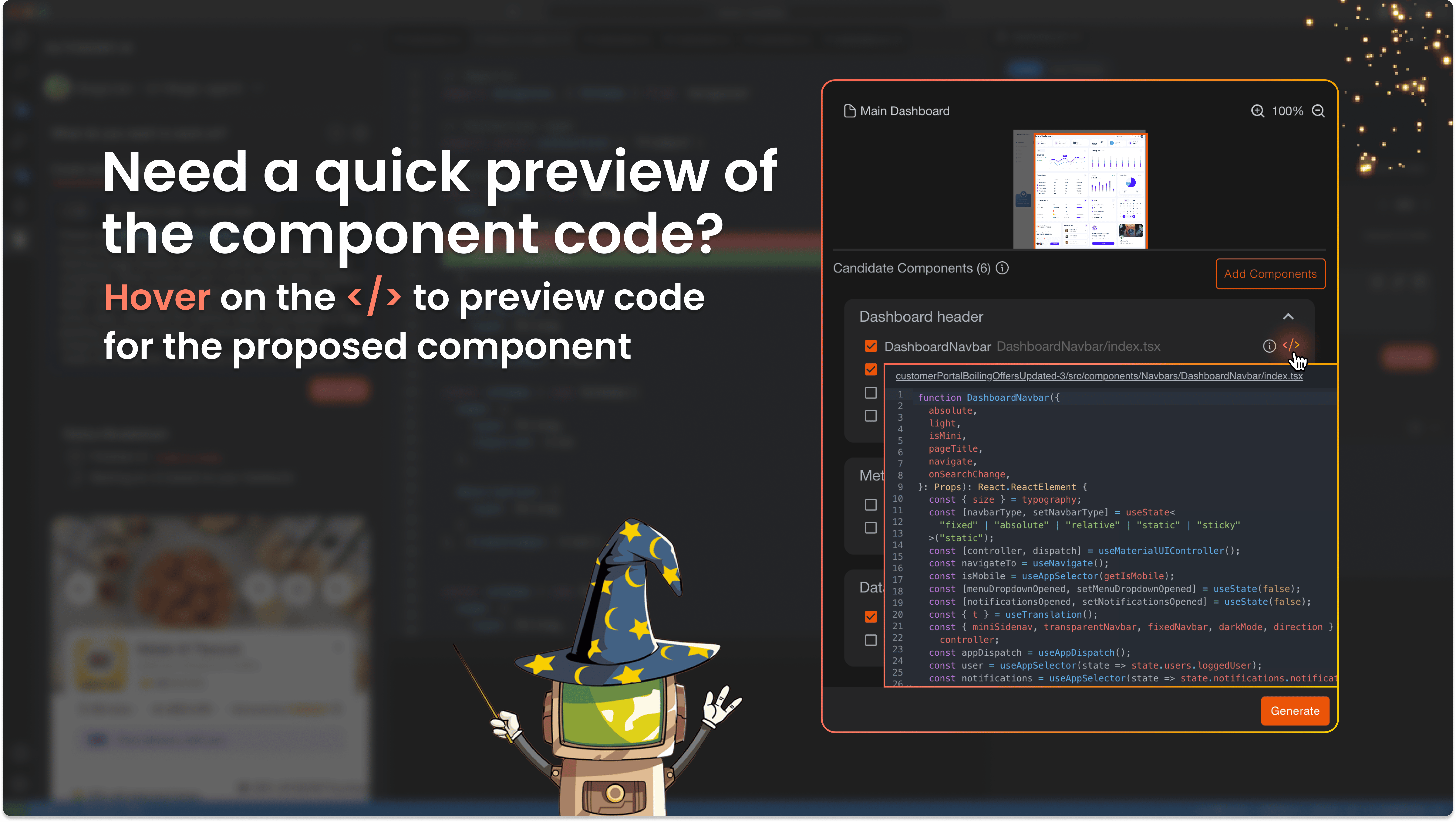
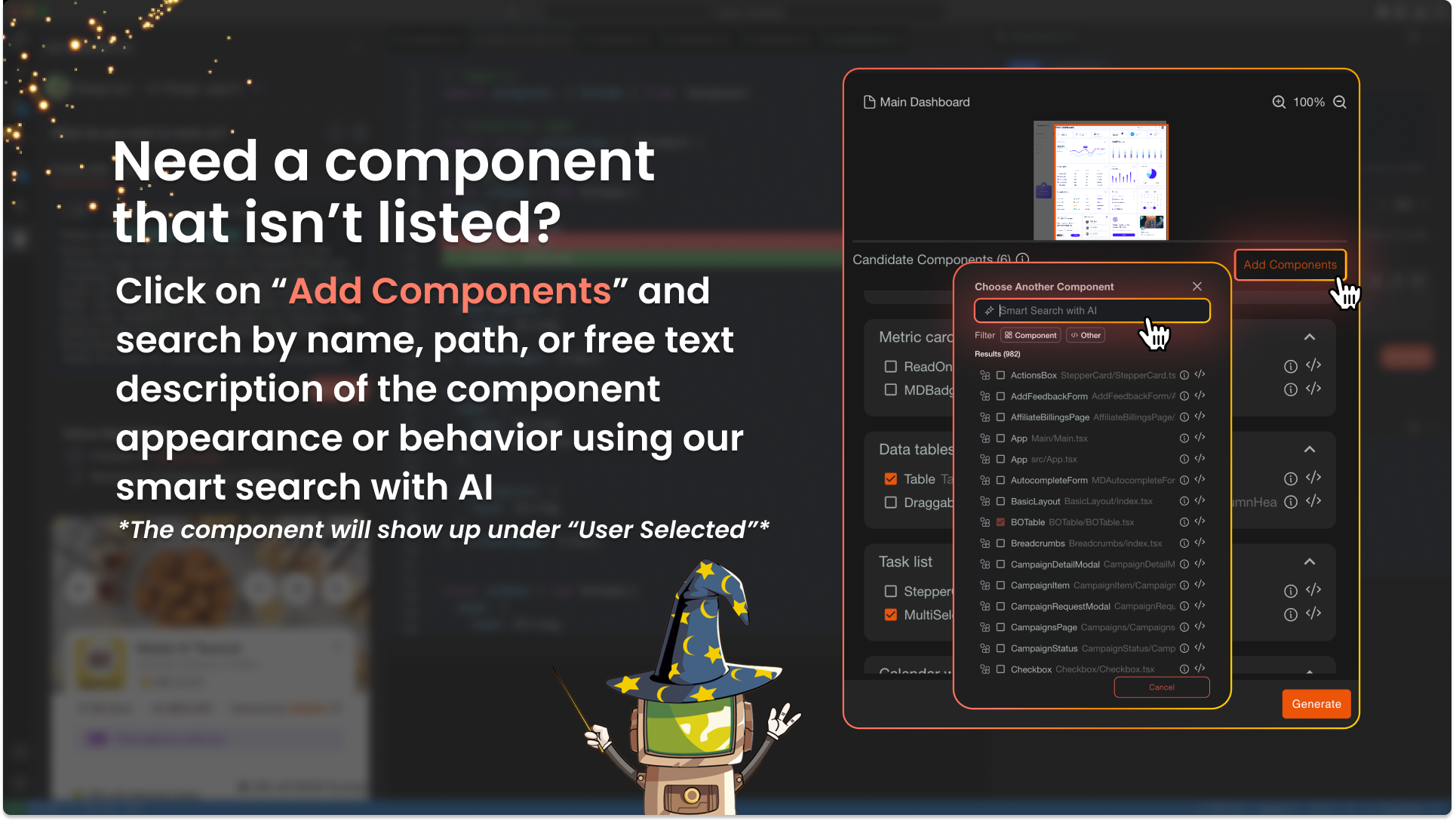
You may add additional components to the list.
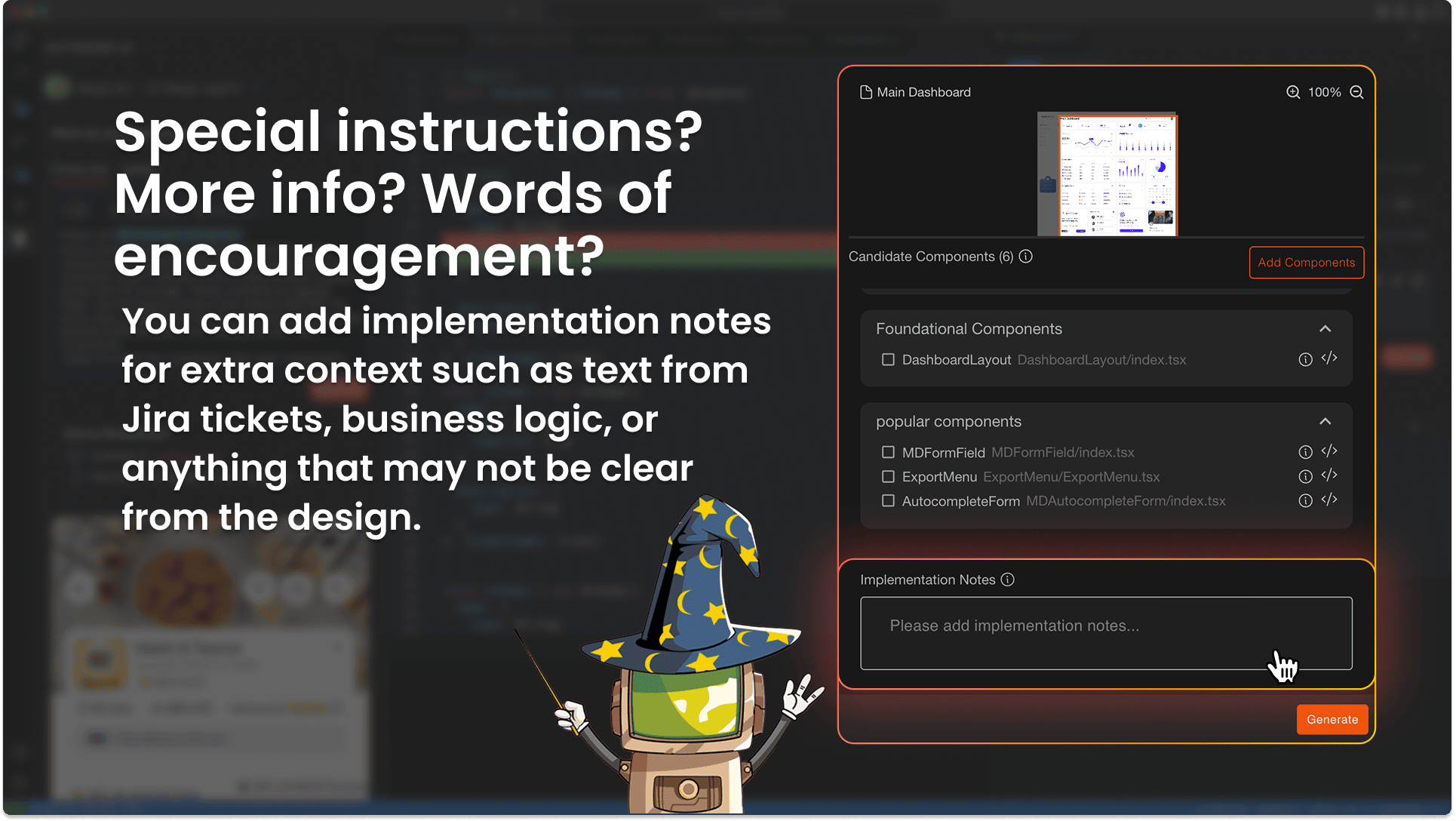
Use the implementation notes text box for extra context. Add Details from Jira, logic or anything not clear from the design.
Code Generation
While you’re off working on other tasks, Fei will convert your design instructions into context-aware code. Once it’s ready, it will appear in the “Current Run” section on the left panel.
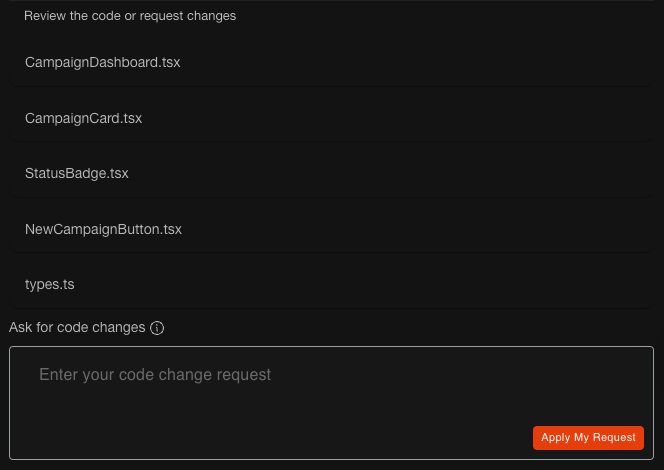
Once code generation is complete, you’ll be able to review the files that were created or updated. The file list will also include the Readme file and auto-improved components.
ReadMe
After each run, Fei generates a README file alongside your new components. This file provides a clear summary of:
Which UI changes were made
What logic or structure Fei inferred
Whether any existing components were auto-improved (✨)
You can find the ReadMe file at the top file list
Think of it as your personal changelog — giving you full visibility into Fei’s decision-making
Auto-Improved Components
If Fei reuses a component that doesn’t align with your project’s standards, it will automatically clean, refactor, and align it with your codebase.
These upgrades are marked with a ✨ Auto-Improved badge
You can review the changes in a diff view before accepting
This ensures all reused code stays consistent, readable, and high quality
Show Diff
You can click Show Diff to see the changes to existing components
Each updated component shows a Diff icon—click it to compare old vs. new.
Hover over each file to see a summary of the edits made.

Preview (BETA)
In supported projects, you’ll see a Preview button after code generation. This allows you to render and view the updated component and original component (if it exists) before accepting changes.
Great for visually validating updates before saving
Full support is expanding with each release
⚠ Note: Preview is currently in Beta and being rolled out gradually. If your project supports it, the button will appear automatically. If you don’t see the Preview option yet — hang tight! We’re working to support more project types soon.
Ask for Changes
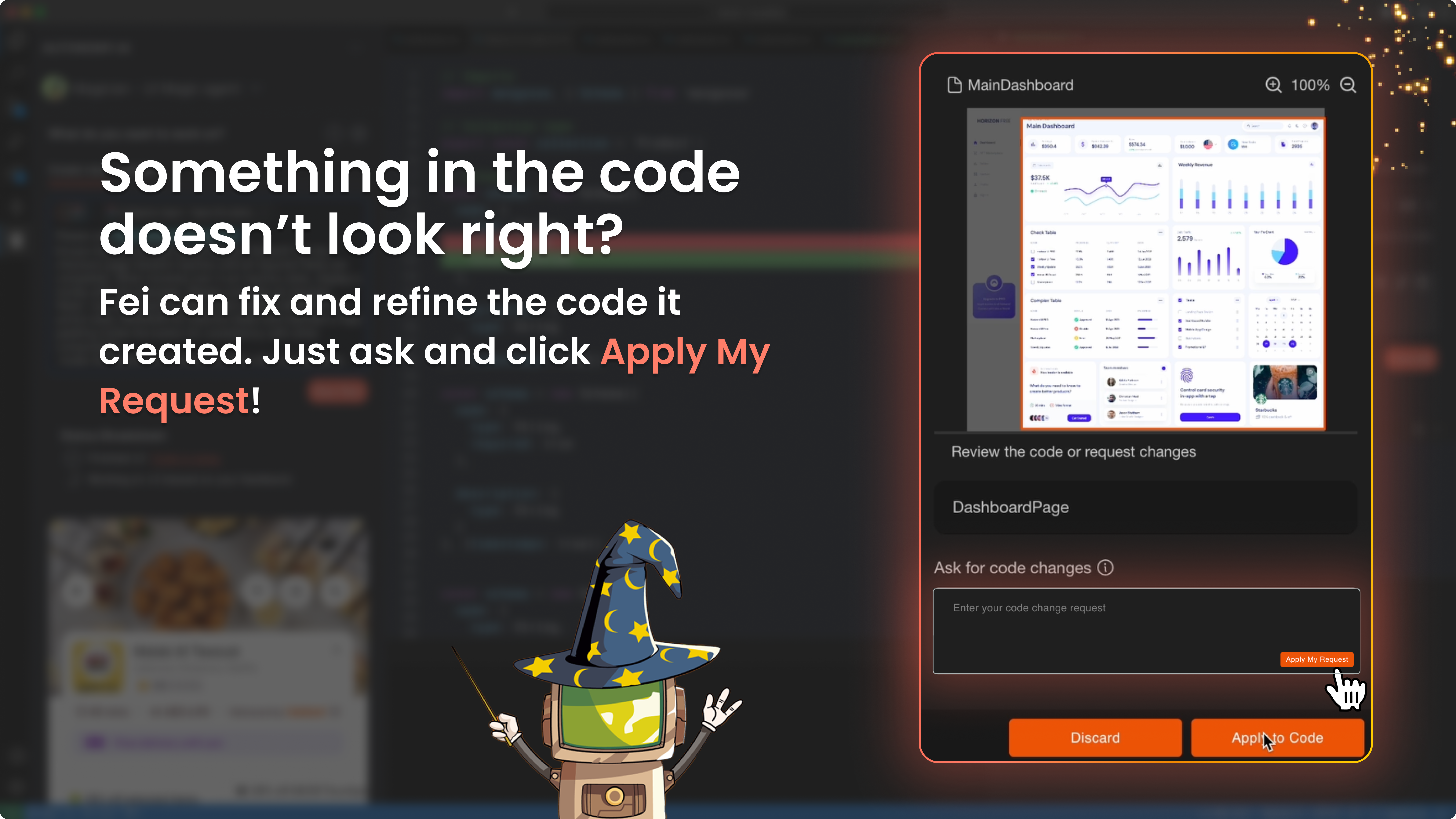
After reviewing the code and preview, we encourage you to use the textbox to submit requests for refining the code, including using different components or adjusting logic
Hit “Apply my request” to trigger a new refinement.
Don’t click “Finish the draft” if you still want to make edits.
Each updated component shows a Diff icon—click it to compare old vs. new.
White/Grey icon = overall diff from original file
Orange icon = specific diff for your change request
Hover over each file to see a summary of the edits made.
If your project supports preview, you can leave the preview window open, and it will automatically update with your new change requests.
Final Touches
After doing a final review of the code and preview:
If happy, click Finish the Draft to apply changes to your codebase.
Want to scrap it? Click Delete the Draft to keep your original files untouched.
You can also Revert to an earlier version at any point.
You can repeat this flow as many times as needed—feel free to iterate away!
Leave Feedback
After you’re done, we’d love to hear how it went! Use the feedback box to share what worked and what didn’t so we can keep improving the experience.
All done? Congrats are in order!
After you click Accept, Fei takes care of file placement automatically:
Updated files are replaced in-place where they belong
New files are created directly in your configured output folder
No more shuffling things out of .autonomy — that folder is retired 🎉