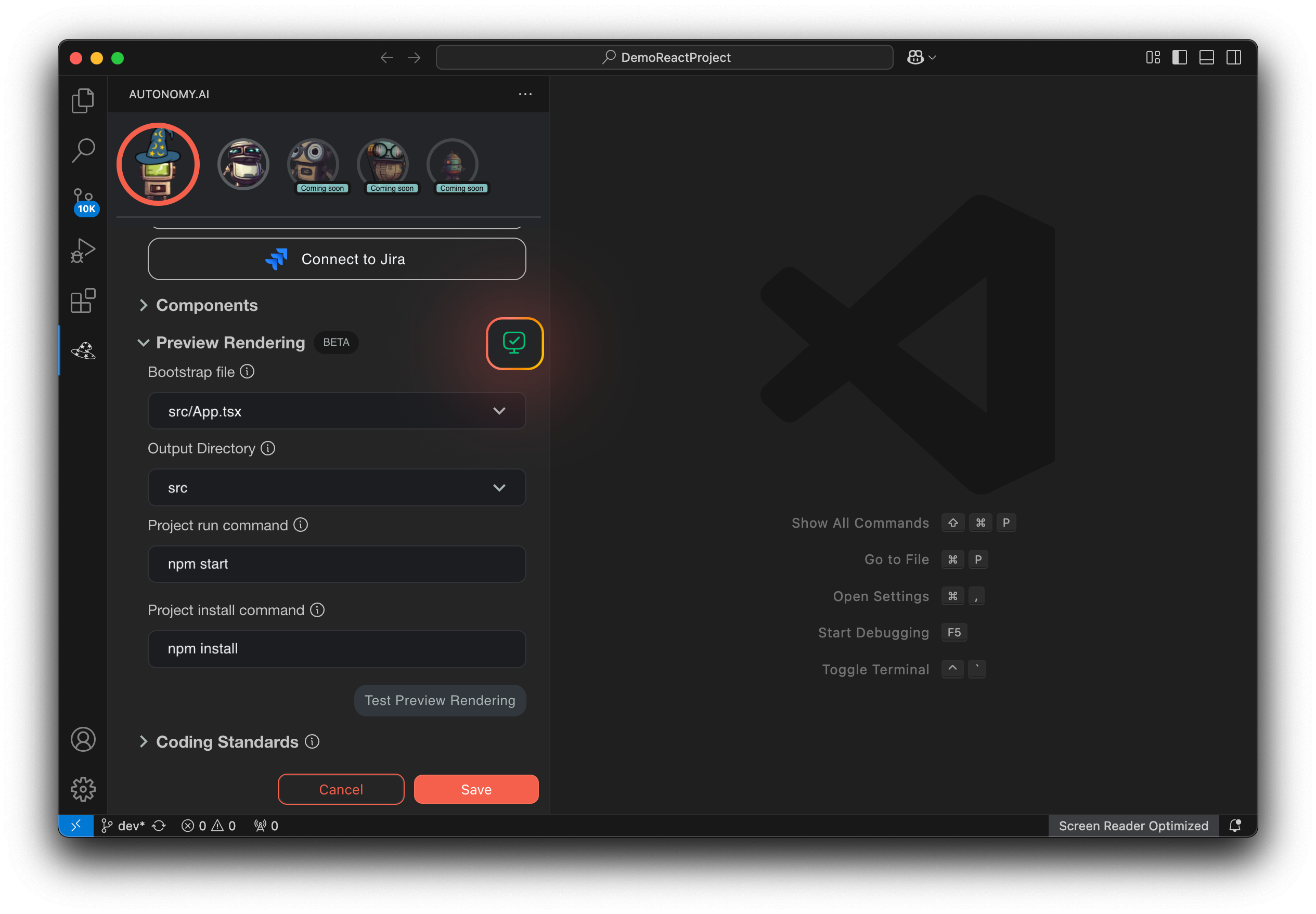
Preview Instructions
Last updated: August 18, 2025
No more guesswork. Preview lets you see exactly what you’re getting, before you hit accept. Catch layout quirks, logic issues, and interaction bugs live, so you can ship with confidence.
NOTE: This is still a beta feature and may not work smoothly across all projects or environments. Reach out if anything feels off 🙂
Before starting your run, make sure to check the preview status
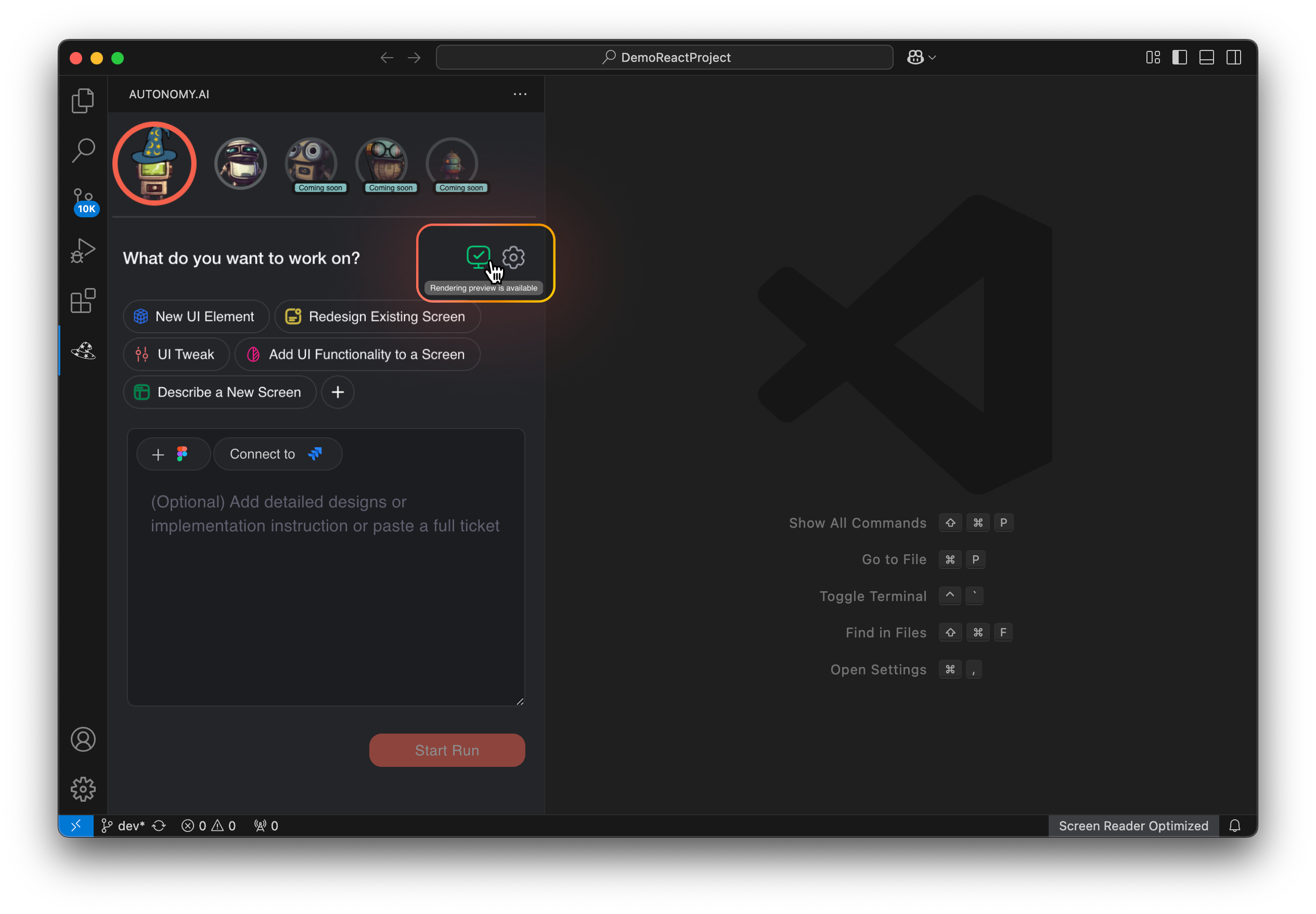
If the preview status button is green, you are good to go! Go ahead and start your Run, if not, lets fix that.
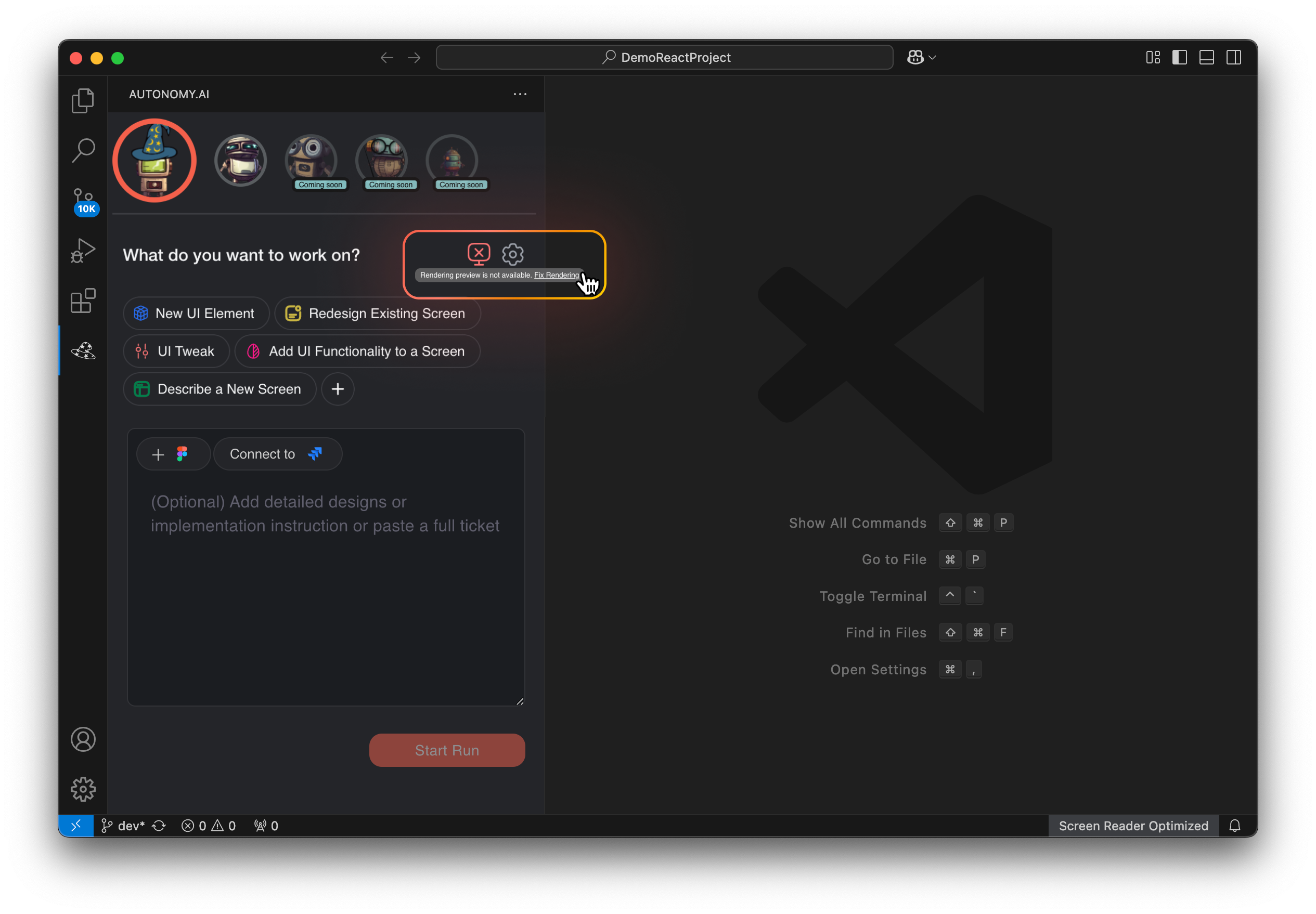
If the preview status is red, then you need to click on the preview status button to open a panel to fix the configurations to make the preview work.
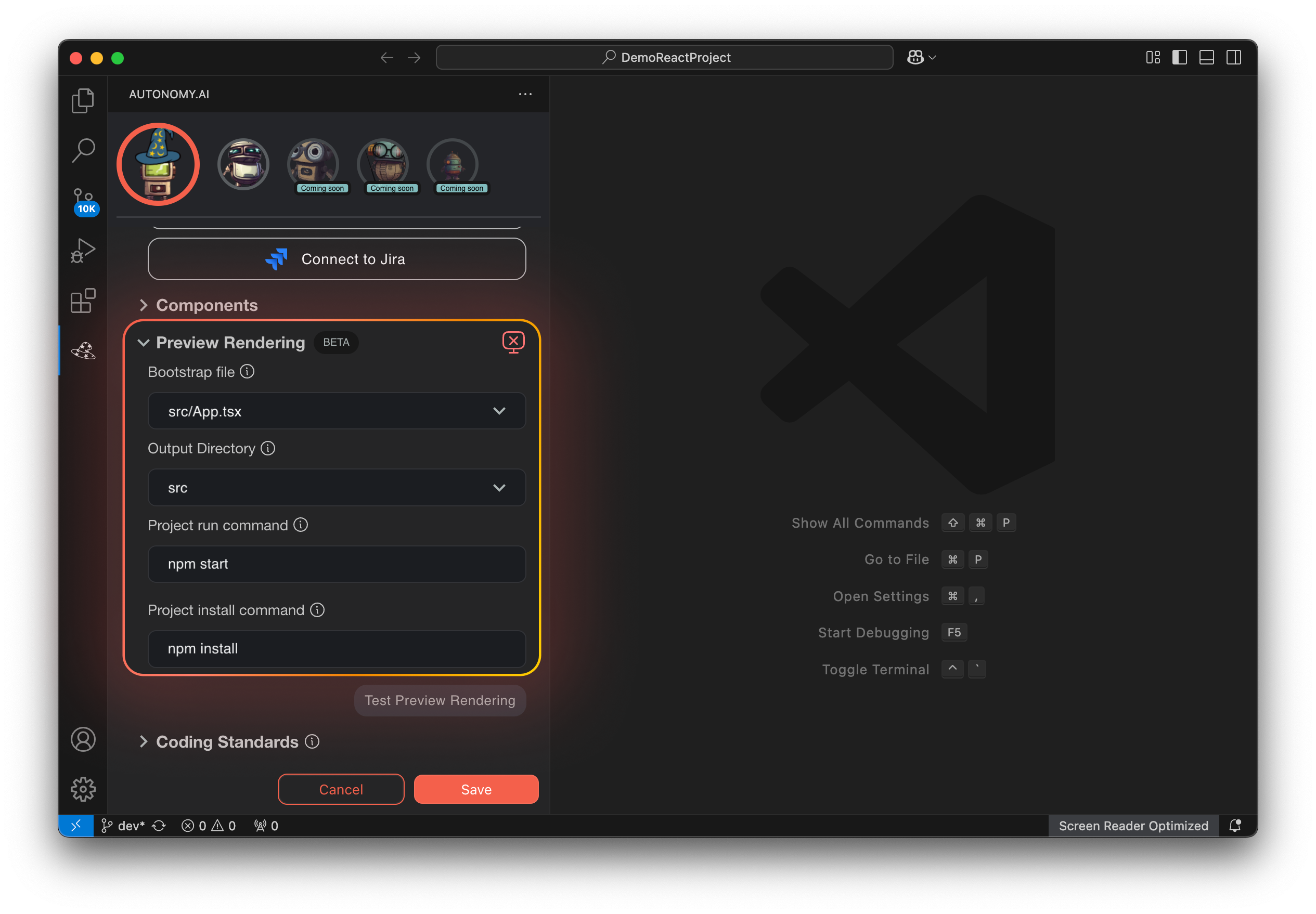
Once in the configuration panel, you need to fill out the input field labeled “Preview Rendering” for Fei to be able to run the preview at the end of your next run.
After filling out the fields, make sure to click “Test Preview Rendering,” which will allow Fei to verify if it'll be successful.
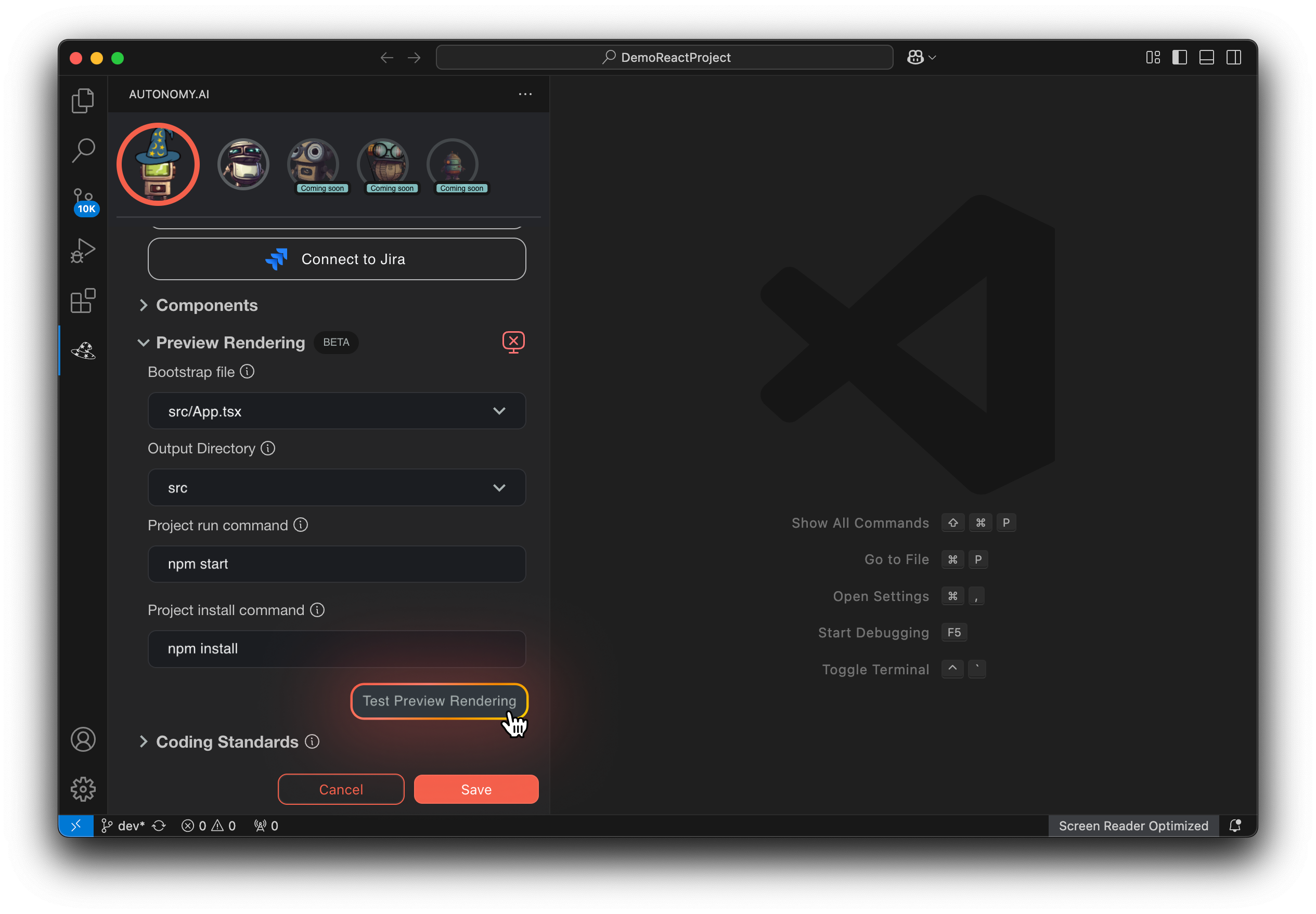
If the test rendering was successful, the icon will change to green, and you are okay to continue updating and creating screens that you'll be able to preview. If the icon remains red, it will provide an update with a specific error that you need to resolve.